If the front passenger seat occupant is misclassified, the air bag may deploy incorrectly in the event of a crash, increasing the risk of injury.
Summary
Nissan North America, Inc. (Nissan) is recalling certain model year 2013-2015 Altima vehicles manufactured January 3, 2013, to July 29, 2013, 2015-2016 Rogue vehicles manufactured October 14, 2014, to August 12, 2016, and 2016 Maxima vehicles manufactured June 4, 2015, to August 19, 2015.
The incorrect ECU and seat combination may misclassify the front passenger seat occupant.
Remedy
Nissan will notify owners, and dealers will replace the ECU and update the OCS software free of charge.
The is expected to begin by February 12, 2017.
Owners may contact Nissan customer service at 1-800-647-7261.
Notes
Owners may also contact the National Highway Traffic Safety Administration Vehicle Safety Hotline at 1-888-327-4236 (TTY 1-800-424-9153), or go to www.safercar.gov.
Attention: Dealer Principal, Sales, Service & Parts Managers
IMPORTANT: It is a violation of Federal law for retailers to sell or deliver vehicles in their inventory covered by this notification until the campaign action is performed.
Affected Models/Years:
Affected
Population:
Dealer
Inventory:
SERVICE COMM
Activation date:
Stop Sale In Effect
MY2016 Maxima (A36)
90
1
December 20th, 2016
YES
MY2013-15 Altima (L33)
483
NA
MY2015-16 Rogue (T32)
184
5
***** Campaign Summary *****
Nissan is committed to the safety and security of our customers and their passengers. Nissan has notified the National Highway Traffic Safety Administration (NHTSA) that it is conducting a Voluntary Safety Recall Campaign on a limited number of MY2013-15 Nissan Altima, MY2015-16 Nissan Rogue, and MY2016 Nissan Maxima vehicles to replace the Occupant Classification System (OCS) Electronic Control Unit (ECU) with a new unit.
Due to supplier labelling error that has since been corrected, an incorrect OCSECU module may have been installed in the front passenger seat of some of the affected vehicles, resulting in the incorrect pairing of ECU-to-seat. With this configuration, the OCS may not perform as designed due to software incompatibility and may not classify a seated front passenger seat occupant correctly. This could cause the passenger airbag to not deploy as designed in a crash, increasing the risk of injury.
Owners of affected vehicles will be notified within sixty (60) days asking them to bring their vehicle to an authorized Nissan retailer to have their vehicle’s OCSECU replaced.
***** What Dealers Should Do****
Verify if vehicles are affected by these Voluntary Safety Recall Campaigns using the following Service Comm I.Ds:
PC523 – Altima and Maxima
PC526 – Rogue
New vehicles in dealer inventory can be also be identified using DCS (Sales-> Vehicle Inventory, and filter by Open Campaign).
Refer to NPSB 15-460 for additional information
Note: If a vehicle is affected by both R1609 and PC523 or PC526 and the R1609 remedy has not yet been performed, campaign PC523 or PC526 should be performed first.
Dealers should not sell, lease, trade, rent or loan any vehicles in dealer inventory affected by this recall campaign until after the vehicle has been repaired.
Dealers will use the procedure included with this announcement to replace the OCS control unit with the correct service part and reprogram with the latest OCS software.
If a retailed vehicle affected by these campaign ID visits the dealer for service, the dealer should inform the customer about the recall campaign and communicate that parts may need to be ordered. Rental is covered under the campaign if parts need to be ordered.
EXPENSE CODE
DESCRIPTION
502
Rental Expense
$400 (Max)
Contact the Warranty claims call center 1-800-258-7008 Option 7, if additional expense is required.
***** Release Schedule *****
Parts
Parts for this campaign are currently restricted and may be ordered via the DCS ordering tool.
Pursuant to APRM policy 2.33.13, dealers are expected to comply with the parts return procedure. Dealers will be charged back for parts and labor found to be out of compliance with inspection and repair guidelines.
NOTE: Parts requested are VIN and repair order specific. It is important for dealers to return parts applicable to the VIN and repair order identified.
Repair
Campaign TSBs are currently under development and will be the subject of a future announcement
Please use the remedy procedure included with this announcement to remedy vehicles in dealer inventory as well as any affected retail vehicles
Owner Notification
Nissan will begin notifying owners of all potentially affected vehicles within sixty
(60) days via U.S. Mail.
***** Dealer Responsibility *****
It is the dealer’s responsibility to check Service Comm using the appropriate Campaign I.D. for the campaign status on each vehicle falling within the range of this voluntary safety recall campaign which for any reason enters the service department. This includes vehicles purchased from private parties or presented by transient (tourist) owners and vehicles in dealer inventory. If a VIN subject to this recall campaign was part of a dealer trade, the letter associated with that VIN should be forwarded to the appropriate dealer for service completion.
A. Due to supplier labelling error that has since been corrected, an incorrect OCSECU module may have been installed in the front passenger seat of some of the affected vehicles, resulting in the incorrect pairing of ECU-to-seat.
Q. What is the possible effect of the condition?
A. With this configuration, the OCS may not perform as designed due to software incompatibility and may not classify a seated front passenger seat occupant correctly. This could cause the passenger airbag to not deploy as designed in a crash, increasing the risk of injury.
Q. What will be the corrective action for this voluntary safety recall campaign?
A. For affected vehicles, Nissan dealers will replace the Occupant Classification System (OCS) Electronic Control Unit (ECU) and reprogram it with the latest OCS software at no cost to you for parts and labor.
Note: If a vehicle is affected by both R1609 and PC523 or PC526 and the R1609 remedy has not yet been performed, campaign PC523 or PC526 should be performed first.
Q. How long will the corrective action take?
A. The remedy should take less than one (1) hour to complete. However, the Nissan dealer may require a longer period of time based upon their work schedule. All services will be provided at no cost to the customer for parts and labor.
Q. When will vehicle owners be notified?
A. Nissan will begin notifying owners of all potentially affected vehicles within sixty (60) days via U.S. Mail. Owners will be asked to bring their vehicle to an authorized Nissan dealer to have the Occupant Classification System (OCS) Electronic Control Unit (ECU) replaced and reprogrammed.
Q. Are parts readily available?
A. Parts are available via the DCS ordering tool under PC523 or PC526. Please refer to NPSB 16-526 for specific ordering instructions.
Q. Is my vehicle safe to drive?
A. Owners may drive the vehicle at their discretion. However, if the vehicle is subject to the recall, you should make arrangements to have your vehicle remedied as soon as possible.
Q. Will a rental vehicle be provided while the dealer is servicing the vehicle?
A. If parts are required, rental is covered by the campaign while parts are on order:
EXPENSE CODE
DESCRIPTION
502
Rental Expense
$400 (Max)
Contact the Warranty claims call center 1-800-258-7008 Option 7, if additional expense is required.
Q. I have lost confidence in the vehicle. Will Nissan replace or repurchase the vehicle?
A. The repair will fully correct this condition. As the condition will be corrected, there is no basis for repurchasing or replacing your vehicle.
Q. Is there anything owners can do to mitigate the condition?
A. No.
Q. Is there any charge for the repair?
A. No, the repair will be performed for the customer free of charge for parts and labor.
Q. Will I have to take my vehicle back to the selling dealer to have the service performed?
A. No, any authorized Nissan dealer is able to perform the recall campaign.
For Consumer Affairs: Please inform us of the dealer where you would like to have the corrective action completed.
Q. What model year vehicles are involved?
A. Certain MY2013-15 Nissan Altima, MY2015-16 Nissan Rogue, and MY2016 Nissan Maxima vehicles within a specific production range are affected.
Q. How many vehicles are involved in the campaign?
A. The North American Market is affected as follows:
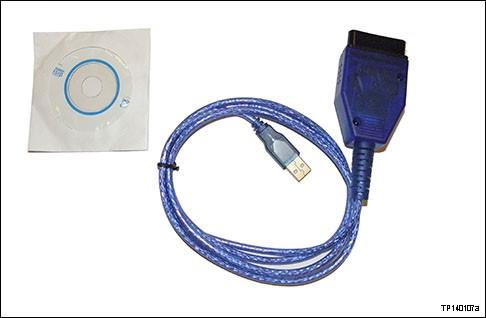
REQUIRED SPECIAL TOOL J-51594 (OCS Reprogramming Cable)
One J-51594 OCS reprogramming cable has been supplied to each Additional cables can be obtained from Tech-Mate at 1-800-662-2001.
NOTE:
The Service Procedure in this bulletin uses CONSULT-III plus to reprogram the Airbag Diagnostic Sensor Unit and the Occupant Classification System (OCS) control unit.
If equipped, write down the customer preferred setting for the Automatic Air Conditioning System.
If needed, refer to System Settings in the HAC section of the Electronic Service Manual (ESM).
Turn the vehicle OFF.
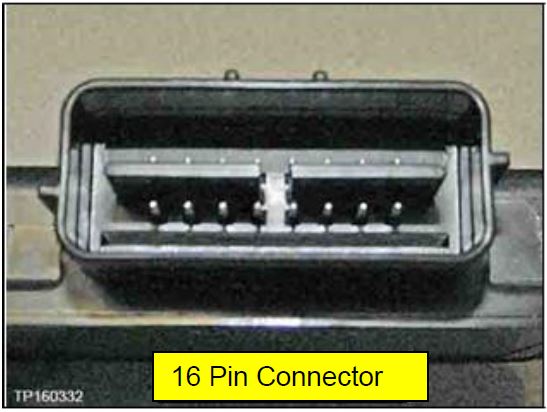
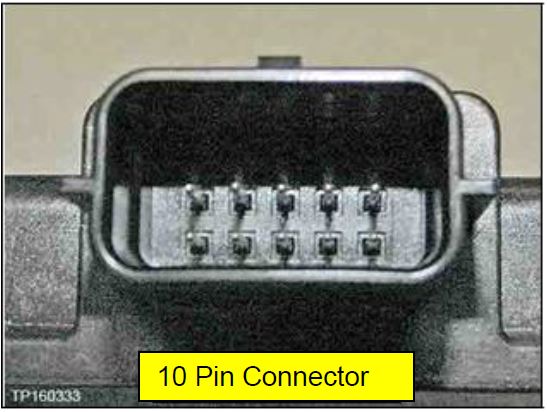
Select the correct OCS control unit (OCSECU) from Parts Information and confirm that the pin count is the same as the OCS control unit being replaced, See chart on Page 14.
Refer to the ESM section, PG – Power, Supply & Ground Elements for a listing of systems that require reset/initialization after reconnecting the 12V battery.
Look in the PG section index for ADDITIONAL SERVICE WHEN REMOVING BATTERY NEGATIVE TERMINAL.
Be sure to turn OFF all vehicle electrical loads.
If a vehicle electrical load remains ON, the OCSECU may be damaged.
Be sure to connect the AC Adapter.
If the CONSULT PC battery voltage drops during reprogramming, the process will be interrupted and the OCSECU may be damaged.
Make sure ASIST has been synchronized to the current date and all updates have been Installed.
NOTE: The PC automatically gets applicable reprogramming software during ASIST synchronization.
Open the vehicle hood, connect GR8 and set to ECM Power Supply Mode.
Proceed to OCS Control Unit Reprogram steps on the next pages.
NOTE: In this Service Procedure, OCS is sometimes referred to as ODS.
Install the driver for the J-51594 OCS reprogramming cable as follows:
Keep the PC connected to the internet.
Connect the J-51594 OCS reprogramming cable to the PC USB port.
Wait 1 minute, the drivers will install automatically.
NOTE: Step 1 above is only required the first time this procedure is performed. It is recommended that it be performed at the beginning of each day to confirm you have the latest software installed in your PC.
Turn the ignition ON, engine OFF / not Ready and turn ON the hazard warning flasher lights (if not still ON).
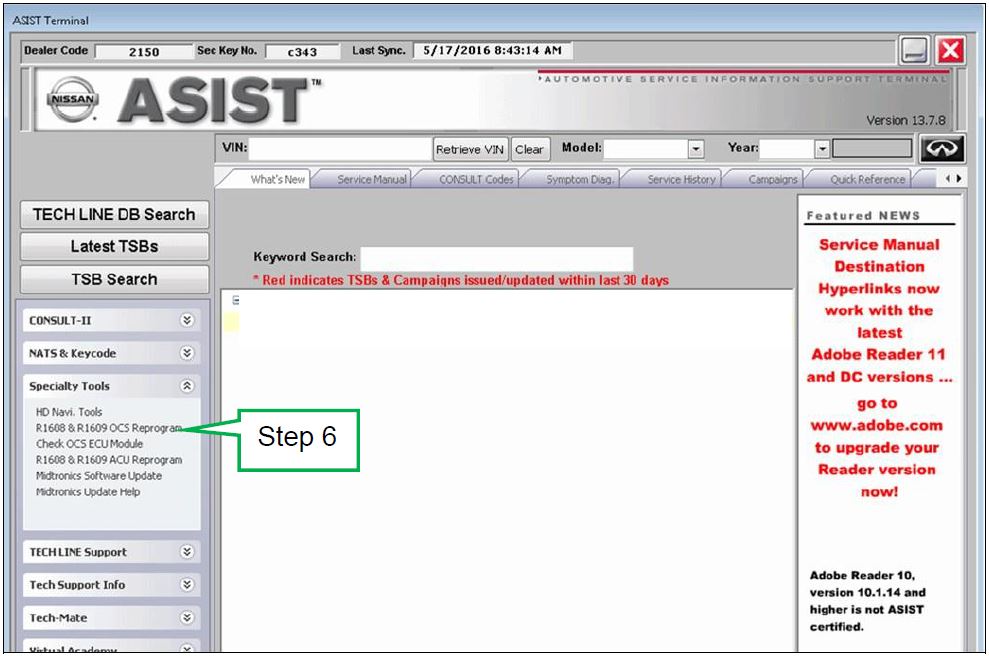
Select “R1608 & R1609 OCS Reprogram” on ASIST under Specialty Tools (Figure 11).
Figure 11
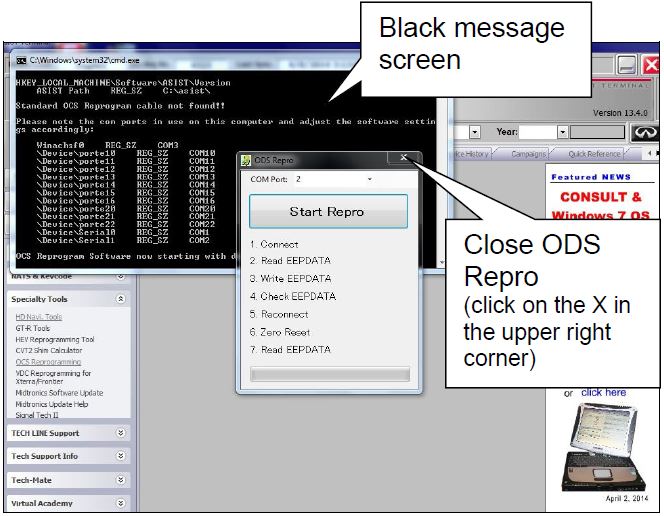
NOTE: If you get a black message screen as shown in Figure 12, this indicates that the reprogramming cable is not connected, or the cable driver did not install correctly.
Turn the ignition ON and observe the air bag warning light and the front passenger air bag status light:
The air bag warning light should illuminate for 7 seconds and then go out.
The front passenger airbag status light should illuminate for 7 seconds and then either stay illuminated or go out, depending on the occupation of the front passenger seat.
NOTE: If the air bag warning light or the front passenger airbag status light does not operate as described above, there may be an issue not covered by this campaign. Refer to ASIST and the appropriate ESM for additional diagnostic and repair information.
REQUIRED SPECIAL TOOL J-51594 (OCS Reprogramming Cable)
One J-51594 OCS reprogramming cable has been supplied to each Additional cables can be obtained from Tech-Mate at 1-800-662-2001.
NOTE:
The Service Procedure in this bulletin uses CONSULT-III plus to reprogram the Airbag Diagnostic Sensor Unit and the Occupant Classification System (OCS) control unit.
If equipped, write down the customer preferred setting for the Automatic Air Conditioning System.
If needed, refer to System Settings in the HAC section of the Electronic Service Manual (ESM).
Turn the vehicle OFF.
Select the correct OCS control unit (OCSECU) from Parts Information and confirm that the pin count is the same as the OCS control unit being replaced, See chart on Page 14.
Refer to the ESM section, PG – Power, Supply & Ground Elements for a listing of systems that require reset/initialization after reconnecting the 12V battery.
Look in the PG section index for ADDITIONAL SERVICE WHEN REMOVING BATTERY NEGATIVE TERMINAL.
Connect the GR8 to the 12V battery and select ECM Power Supply Mode. If the vehicle battery voltage goes below 0V or above 15.5V during reprogramming, the Occupant Classification System Control Unit (OCS ECU) may be damaged.
Be sure to turn OFF all vehicle electrical loads.
If a vehicle electrical load remains ON, the OCS ECU may be damaged.
Be sure to connect the AC Adapter.
If the CONSULT PC battery voltage drops during reprogramming, the process will be interrupted and the OCS ECU may be damaged.
Make sure ASIST has been synchronized to the current date and all updates have been installed.
NOTE: The PC automatically gets applicable reprogramming software during ASIST synchronization.
Open the vehicle hood, connect GR8 and set to ECM Power Supply Mode.
Proceed to OCS Control Unit Reprogram steps on the next pages.
NOTE: In this Service Procedure, OCS is sometimes referred to as ODS.
Install the driver for the J-51594 OCS reprogramming cable as follows:
Keep the PC connected to the internet.
Connect the J-51594 OCS reprogramming cable to the PC USB port.
Wait 1 minute, the drivers will install automatically.
NOTE: Step 1 above is only required the first time this procedure is performed. It is recommended that it be performed at the beginning of each day to confirm you have the latest software installed in your PC.
Turn the ignition ON, engine OFF / not Ready and turn ON the hazard warning flasher lights (if not still ON).
Select “R1608 & R1609 OCS Reprogram” on ASIST under Specialty Tools (Figure 11).
Figure 11
NOTE: If you get a black message screen as shown in Figure 12, this indicates that the reprogramming cable is not connected, or the cable driver did not install correctly.
NOTE: If the error message “an error occurred on connection” displays:
a. Disconnect the J-51594 OCS reprogramming cable, both ends.
b. Reconnect the cable; make sure it is securely connected at both ends.
Figure 13
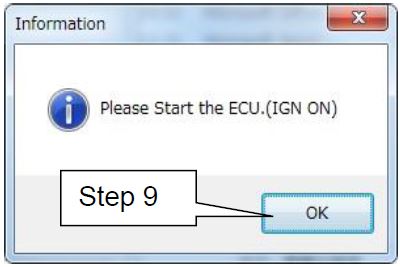
Turn the ignition ON (engine OFF / not Ready).
Select OK.
After selecting OK in Figure 14, the OCS reprogramming will start.
Figure 14
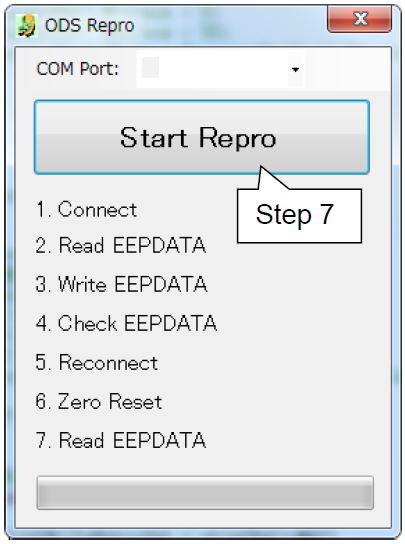
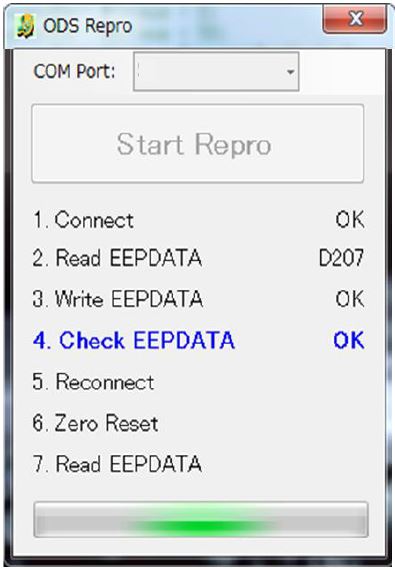
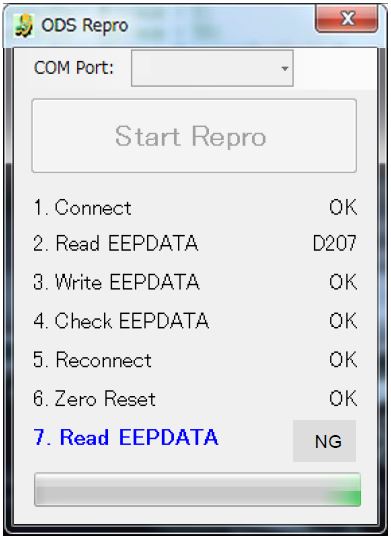
Items 1 through 4 (Figure 15) will likely complete quickly.
If the OCS reprogramming stops (displays NG) at item 1, 2, 3 or 4, refer to Figures 20 through 23 on pages 10 and 11.
Figure 15
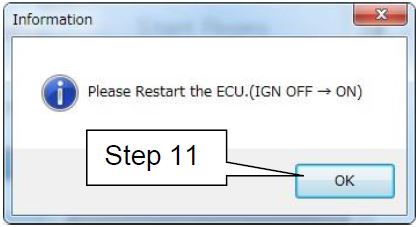
Cycle the ignition OFF > ON.
Select OK.
Figure 16
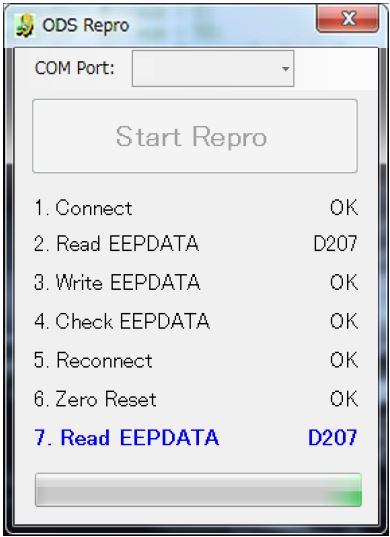
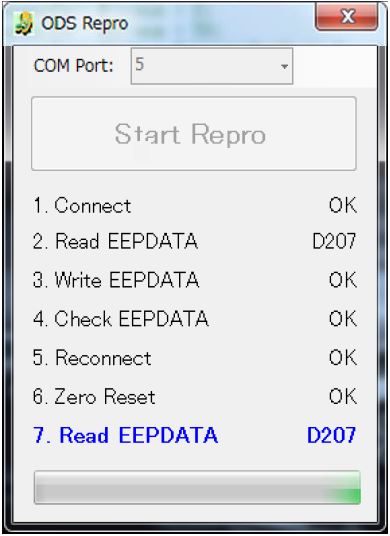
After selecting OK in Figure 16, the OCS reprogramming will likely complete items 5 through 7 quickly (see “Complete” screen, Figure 18 below).
If the OCS reprogramming stops (displays NG) at item 5, 6 or 7, refer to Figures 24 through 26 on pages 12 and 13.
Figure 17
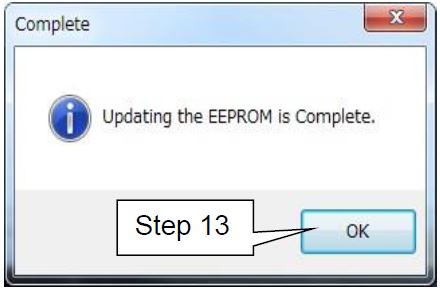
When this screen displays (Figure 18), OCS reprogramming is complete.
Select OK.
Figure 18
Close the program (click on the red X in the upper right corner).
Turn the ignition OFF.
Figure 19
Disconnect the J-51594 OCS reprogramming cable.
Disconnect the GR8, turn hazards OFF.
Turn the ignition ON and observe the air bag warning light and the front passenger air bag status light:
The air bag warning light should illuminate for 7 seconds and then go out.
The front passenger airbag status light should illuminate for 7 seconds and then either stay illuminated or go out, depending on the occupation of the front passenger seat.
NOTE: If the air bag warning light or the front passenger airbag status light does not operate as described above, there may be an issue not covered by this campaign. Refer to ASIST and the appropriate ESM for additional diagnostic and repair information.
OCS Reprogramming is Complete
NOTE:
Zero Point Reset was included in the reprogramming – it is not necessary to perform as a separate
Figures 20 through 26 on pages 10 through 13 are provided as reference if the OCS reprogramming stops (displays NG) at one of the items (1-7).
Release the vehicle and submit a warranty claim using OP Code PC5230 (See Claim Information),
APPENDIX
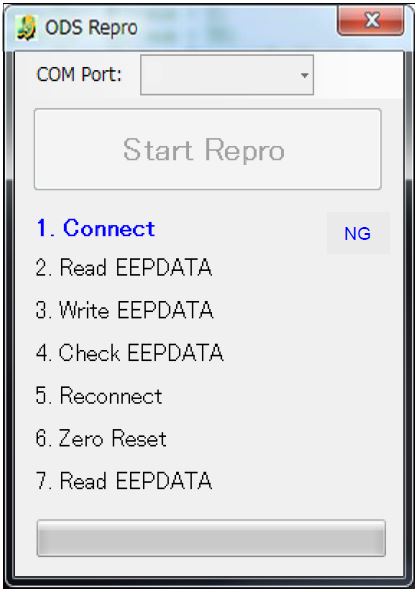
#1 – If Connect indicates NG:
a. Click OK on the accompanying error message.
b. Turn the ignition OFF.
c. Close ODS Repro (click on the red X in the upper right corner).
d. Restart from step 1 on page 5.
Figure 20
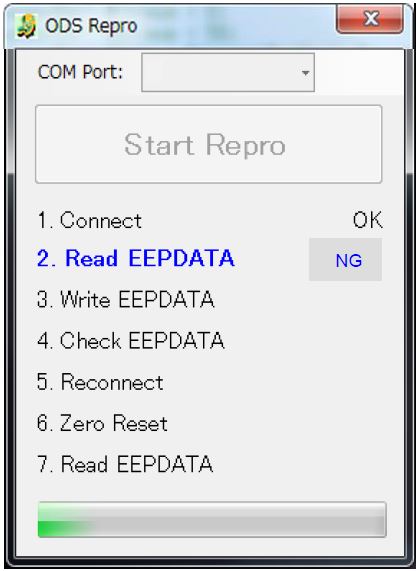
#2 – If Read EEPDATA indicates NG:
a. Click OK on the accompanying error message.
b. Turn the ignition OFF.
c. Close ODS Repro (click on the red X in the upper right corner).
d. Restart from step 1 on page 5.
Figure 21
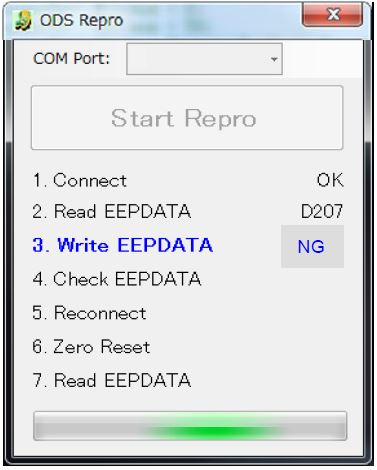
#3 – If Write EEPDATA indicates NG:
a. Click OK on the accompanying error message.
b. Turn the ignition OFF.
c. Close ODS Repro (click on the red X in the upper right corner).
d. Restart from step 1 on page 5.
Figure 22
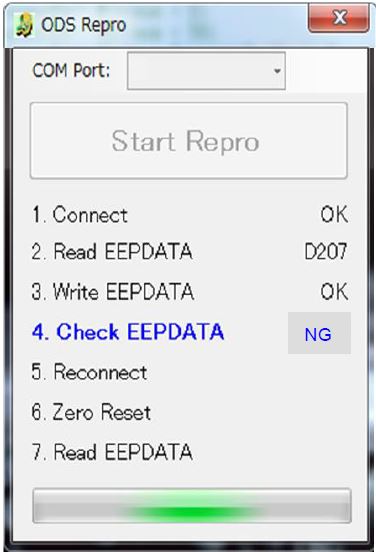
#4 – If Check EEPDATA indicates NG:
a. Click OK on the accompanying error message.
b. Turn the ignition OFF.
c. Close ODS Repro (click on the red X in the upper right corner).
d. Restart from step 1 on page 5.
Figure 23
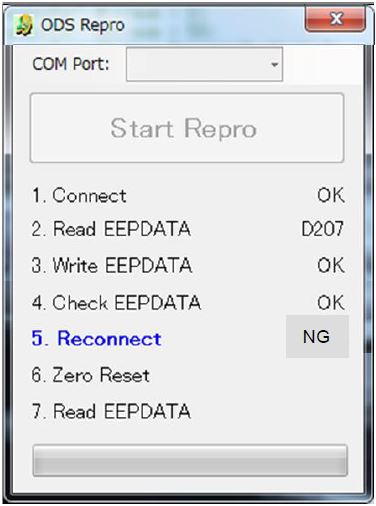
#5 – If Reconnect indicates NG:
Click OK on the accompanying error message.
Turn the ignition OFF.
Close ODS Repro (click on the red X in the upper right corner).
Restart from step 1 on page 5.
Figure 24
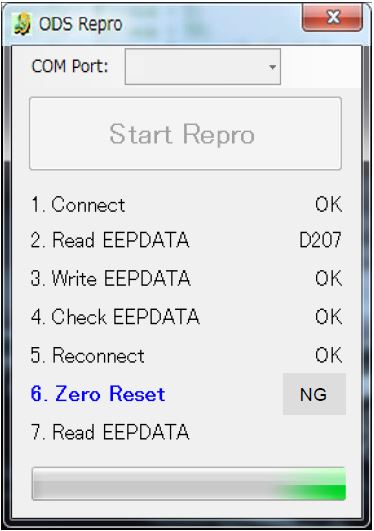
#6 – If Zero Reset indicates NG:
a. Click OK on the accompanying error message.
b. Cycle the ignition OFF > ON.
If needed, retry ignition OFF > ON 5 times.
c. If Zero Reset still indicates NG, close ODS Repro (click on the red X in the upper right corner), and restart from step 1 on page
Figure 25
#7 – If Read EEPDATA indicates NG:
a. Click OK on the accompanying error message.
b. Turn the ignition OFF.
c. Close ODS Repro (click on the red X in the upper right corner).
d. Restart from step 1 on page 5.
Figure 26
PART INFORMATION
To obtain the correct OCS control unit for the vehicle you are working on use the COMPLETE VIN number and FAST parts system or other electronic parts system to look up the applicable control unit.
Confirm that the number of pins of the new part are the same as the original OCS Control Unit.
(See Figures below).
CLAIMS INFORMATION
Submit a Campaign (CM) line claim using the following claims coding: Work Order Line Type: “CM” Campaign
Software updated April 26, 2019 to version # 04.03.00. It is recommended the latest version of NERS be installed before connecting to a vehicle.
This NERS software supports reprogrammable Engine and Transmission control units from 1999 to 2019 model year vehicles, and 2005 MY and later VIN writing into ECUs, when using a Nissan validated pass-through device. Click the Reprogramming Tab for additional information on reprogramming. This software only provides ECU reprogramming, blank programming and VIN writing capability. It does not provide diagnostic or key programming capability. For Engine and Transmission control unit reprogramming and VIN writing capability on 2020 MY & newer, please use CONSULT-III plus or CONSULT-III plus R2R software.
Vehicle reprogramming requires the use of the following:
Once you have purchased ECU data file(s) and your order is completed, your ECU files can be downloaded. Please verify that you are logged in to your account before proceeding.
Purchase of ECU data enables file download access for a period of 24 hours, after which time the file will no longer appear in your list of purchased data files. Be sure to download all data files immediately following your purchase.
When you purchase a J-2534 reprogramming file, you will get a zip file containing a data file (.dat, .pdx, .xcal, .7z), a .csv or .xml file and a Reprog_readme.pdf. Please review the readme file for information on where to place the files in your PC.
Please Note that J2534-1 supports reprogramming on 1999 MY and later vehicles.
How to find the proper J-2534 Reprogramming ECU file:
In order for you to locate the proper ECU file, you will need to look up the applicable Technical Services Bulletin(TSB) for your vehicle. Instructions in the TSB will pinpoint and advise you of the ECU part # to enter below.
Once you have purchased ECU data file(s) and your order is completed, your ECU files can be downloaded. Please verify that you are logged in to your account before proceeding.
Purchase of ECU data enables file download access for a period of 24 hours, after which time the file will not longer appear in your list of purchased data files. Be sure to download all data files immediately following your purchase.
Special Note: Nissan and Infiniti vehicle uses a high level of security when Re/programming or Configuration is performed to the vehicle ECUs. With the release of NERS software version 04.00.01 or greater, technicians will be required to login with their Nissan or Infiniti Techinfo website user ID and password to perform Re/programming and Configuration in NERS. Login Instruction Guide
September 2013, Nissan and Infiniti began the phase in of “Blank” Service Parts ECUs and TCMs. Depending upon the model and model year, replacement modules come WITHOUT software. When a replacement module is installed in an applicable vehicle for any reason, it will need to be programmed.
When you purchase a J-2534 Blank programming file, you will get a zip file containing a data file (.dat, .pdx, .xcal, .7z), a .csv or .xml file and a Reprog_readme.pdf. Please review the readme file for information on where to place the files in your PC.
How to find the proper J-2534 Blank Programming ECU file:
Obtain the blank ECU part number when you purchase the replacement ECU. Nissan’s and Infiniti’s parts catalog provides both the blank ECU part number and the ROM-DATA ID part number (after programming part number) to be used. Enter this blank ECU part number in the field below.
or
Using C-III plus software, retrieve the blank ECU part number from the new ECU. Enter this blank ECU part number in the field below.
Please note: Take care after making your selection that the listed vehicle information matches the vehicle you are programming.
Special Note:NERS Version 03.08 or higher supports Blank RWD, 5 speed TCM programming.
Download Purchased ECU Data File(s)
Once you have purchased ECU data file(s) and your order is completed, your ECU files can be downloaded. Please verify that you are logged in to your account before proceeding.
Purchase of ECU data enables file download access for a period of 24 hours, after which time the file will not longer appear in your list of purchased data files. Be sure to download all data files immediately following your purchase.
Special Note: Nissan and Infiniti vehicle uses a high level of security when Re/programming or Configuration is performed to the vehicle ECUs. With the release of NERS software version 04.00.01 or greater, technicians will be required to login with their Nissan or Infiniti Techinfo website user ID and password to perform Re/programming and Configuration in NERS. Login Instruction Guide
J2534 Pass-Thru Programmer: TOPDON RLink J2534 is an advanced diagnostic and reprogramming tool that support all J2534 protocols, as well as D-PDU, CAN-FD and DoIP, ensuring compatibility with a wide range of modern vehicles. It offers extensive versatility with support for over 18 major automotive brands, including Chrysler, Ford, GM, Nissan, Toyota, Honda, Subaru, Land Rover/Jaguar, Volvo, Wuling, Volkswagen/Audi, Mercedes-Benz, and BMW. NOTE: Not compatible with Ford IDS diagnostic software
All-in-One OEM Diagnostics: This J2534 ECU programming tool elevates your automotive repair capabilities to new heights by delivering complete OEM diagnosis. Boasting comprehensive full-system diagnostics, intuitive repair guides, advanced ECU programming and coding, common reset services, a vast library of repair information and more, this all-in-one solution empowers technicians to effortlessly tackle complex vehicle issues with ease. *Not compatible with 24V vehicles
Proven Performance You Can Trust: Backed by over 10000 real vehicle tests and benefit from a wealth of practical experience, this OEM reprogramming tool guarantees stable and exceptional performance. Supported by TOPDON's dedicated technical experts with in-depth knowledge of both auto repair and J2534 Pass-Thru programming, the RLink J2534 provides prompt and professional assistance, ensuring a smooth setup and reliable compatibility
Integrated Excellence, Always Up-to-Date: Featuring the exclusive RLink Platform to provide a streamlined experience with one-click driver installation and management, ensuring flawless integration with your OE software, maintaining the original performance quality. The built-in operation guide makes mastering OE software quick and easy, so you can get started right away. Plus, with lifetime free updates, your diagnostics will stay current with the latest drivers and innovations
Efficiency Meets Versatility: Engineered to support three CAN channels simultaneously - CAN FD and CAN-CC included, giving you the edge in fast troubleshooting. To perfectly synchronized with the OE software, please diagnose with active subscriptions and make sure your computer system is running a compatible 64-bit Windows version (7, 8, 10 or later) to fully leverage the power of RLink J2534. *We don't provide extra OE software
Advanced VCI Box, Industry-leading J2534 Pass-Thru Technology: This J2534 Pass-Thru Programmer is designed espically for technicians, independent shop owners, and DIY enthusiasts, enables fast, reliable computer-based programming. It supports all J2534 protocols—including the latest DoIP and CAN FD—ensuring full compatibility with both legacy and next-generation vehicles.
High-Speed OEM-Level Diagnostics & Programming: Unlock true OEM functionality with comprehensive system diagnostics, guided troubleshooting, coding, adaptations, resets, and programming—all designed to slash repair time. This all-in-one tool eliminates the need for multiple OEM devices, boosting efficiency and cutting costs. Equipped with High-Speed USB, it delivers 10x more data per second than competing solutions
Coverage for 17 Car Brands & Ultra Reliability: Works seamlessly for Chrysler, for Ford(Forscan), for GM, for Nissan, for Toyota, for Honda, for Subaru(SSM4), for Land Rover/Jaguar, for Volvo, for Wuling, for Volkswagen, for Mercedes-Benz, and for BMW. Backed by over 10000 real vehicle tests and benefit from a wealth of practical experience, this OEM reprogramming tool guarantees stable and exceptional performance
User-Friendly RLink Platform & Expert Support: TOPDON’s proprietary driver management platform offers a clean interface and lifetime free updates. Access a rich library of real-world case studies to stay ahead of the curve. Backed by a support team with 10+ years of J2534 and automotive repair experience, we provide one-on-one assistance to resolve any technical issue.
6.6 ft USB-C Cable & Portable Storage Case: The RLink J2534 diagnostic tool features a 6.6ft USB 2.0 Cable and a 1.2 ft OBDII Extension Cable, allows to connection your computer easily outside the vehicle. The included handled carry case offers easy portability, storage, and hanging options—keeping your gear clean and ready to go, anywhere.
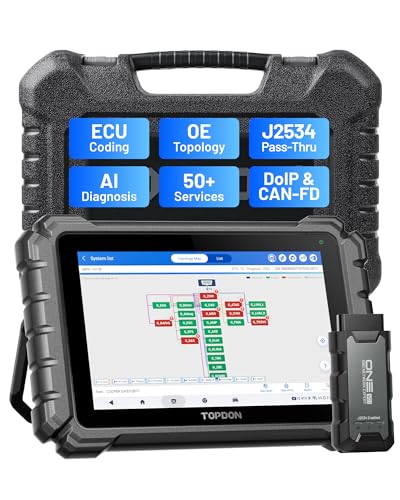
Dual WiFi & 10.1" Touchscreen: Provides a stable, high-speed wireless link 3x faster than bluetooth, and a responsive, professional interface. Topdon ONE obd2 scanner diagnostic tool ensures smooth, non-lagging diagnostic scan, boosting mechanic efficiency
J2534 Pass-Thru Support: The included ONE VCI supports the J2534 standard, allowing it to function as a pass-thru device when paired with OEM diagnostic software.Through TOPDON’s RLink platform, technicians can perform dealer-level coding, expanding in-house capabilities without investing in multiple factory automotive scan tools
OE Topology Mapping: Visualize the vehicle’s ECU network exactly as it’s built.Zoom, pan, and highlight specific modules to pinpoint component issues with precision.Topology mapping displays real-time communication between modules
50+ Service Functions: Covers high-demand services like ADAS calibration, DPF regen, TPMS reset, ABS bleed, and throttle adaptation.Expands your service menu, allows you to charge premium rates, and turns away zero jobs due to lack of tooling. Vehicle-specific functionality may vary
Advaned ECU Coding: 10 of the most serviced brands in North America, including full ECU coding and flash hidden support for BMW, VW, Au-di, Benz, Porsche, Toyota, Ni ssan and more. Enables module replacement, feature customization, and personal settings with automatic backup or restore.Lets your shop safely offer high-margin customization services, attracting more customers and boosting profit
[J2534 Pass-Thru Programmer] - TOPDON RLink J2534 is engineered for professional technicians, delivering OEM diagnostic and reprogramming capabilities. It supports all J2534 protocols, CAN-FD, DoIP, D-PDU. Compatible with 17 vehicle brands—such as Chrysler, Ford, GM, KIA, Hyundai, Nissan, Toyota, Honda, Subaru, Mitsubishi, MAZDA, Land Rover/Jaguar, Volvo, Volkswagen/Audi, Mercedes-Benz, and BMW. RLink J2534 can help reduce the cost of purchasing equipment from different brands.
[All-in-One OEM Reprogramming and Diagnostics] - When seamlessly integrated with OEM diagnostic software, this dongle enables you to perform a wide range of functions, including ECU programming and coding, DTC reading and clearing, active tests, component matching, adaptations, rewriting, guided troubleshooting, and more. This all-in-one tool eliminates the need for multiple OEM devices, significantly boosting work efficiency.
[Tested, Trusted, and Proven for Accuracy] - TOPDON RLink J2534 is renowned for its reliability, having successfully completed over 10,000 real-vehicle tests. The wealth of data and hands-on experience behind it ensures consistent performance and accurate results. You can trust this tool to deliver optimal performance.
[One-Click Installation, Continuous Updates] - The exclusive TOPDON RLink platform streamlines installation with a one-click driver setup, allowing you to quickly access OEM software for diagnostic and reprogramming tasks. With lifetime free updates, your RLink J2534 stays current without any additional cost, ensuring reliable performance for the long term. *We don't provide extra OE software.
[Works with Windows Compatibility and OEM Software Subscription] - The RLink J2534 supports three CAN channels - including CAN FD and CAN-CC, providing advantages in the process of rapid troubleshooting. Compatible with Windows 7, 8 and 10 (64-bit) and higher versions of the system. For full functionality, an active OEM software subscription is required for each supported vehicle brand. Please note that the dongle does not include OEM software, which must be purchased separately to access brand-specific diagnostic and reprogramming features.
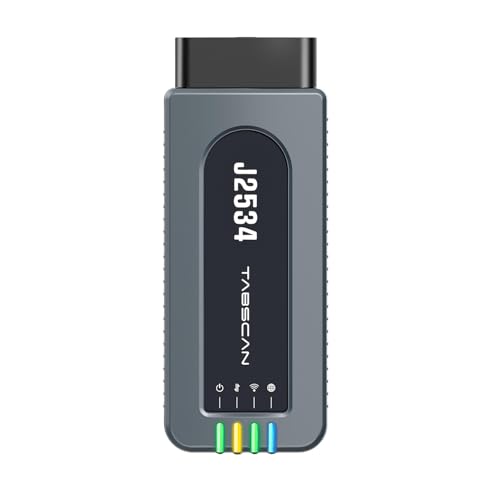
【J2534 Pass-Thru Device】 This budget-friendly J2534 pass-thru device delivers OEM diagnostics and reprogramming capabilities for dealerships, repair shops and automotive DIY enthuisasts, enables you diagnose, program and repair the vehicles more efficiently and precisely. Supporting J2534, D-PDU, CAN-FD and DoIP, this J2534 passthru tool ensures wide vehicle coverage. It's compatible with OE software application, ensuring seamless integration and original performance quality
【All-in-One Diagnostic Tool】 Simplify your workflow and tackle the complex diagnostics and repairs with confidence! This J2534 passthrough tool provides full system diagnosis, bi-directional control, maintenance reset services, ECU programming and ECU coding to run advanced diagnostics and programming. Equipped with the specialized platform, this J2534 pass-thru tool is fully compatible with OE software that helps technicians confidently handle complicated vehicle repair issues
【J2534 Diagnostic Tool】 The Tabscan J2534 pass-thru device is built with a dedicated platform, making it ideal for both professional and personal use. Simply download the driver for your ford vehicle within the platform—ensuring only one driver is installed at a time. Then connect the device to your vehicle’s OBD2 port and link it to your computer using the included USB A to USB C cable. Finally launch your OE software, select Tabscan J2534 VCI as interface, and begin diagnose and program
【Universal Compatibility】 Tabscan J2534 reprogramming tool is designed to be compatible with Ford vehicles for advanced diagnostics and programming. It supports J2534 protocols, along with D-PDU, CAN-FD and DoIP, ensuring seamless connectivity with older or modern vehicles. This J2534 diagnostic tool only works with computer running on windows 7/10/11. Vehicle compatibility varies by model or year, please confirm with us before purchase. Note: It's not compatible with 24V vehicles
【Professional Technical Support】 Tabscan J2534 pass-thru device provides a stable and seamless connection between your vehicle and computer for diagnostics, programming, and coding. But that's not all—we go beyond hardware. Our dedicated technical support team brings deep expertise in automotive diagnostics and programming. Whether you need help with setup, troubleshooting or latest diagnostic resources and upgrades, we provide fast, professional and reliable support every step of the way
ALL OF THE J2534 PROTOCOLS - This single unit has all of the protocols you need for your OEM J2534 reprogramming and diagnostics including the latest in DoIP and CanFD
J2534 TECHNICAL SUPPORT - FREE for the life of the tool. Staffed by technicians who understand vehicle repair and J2534 Pass‑thru
TOOLBOX WITH OEM APPLICATION DESCRIPTIONS - educational video tutorials and real-time news – Giving you the confidence and up-to-date knowledge to get the job done
J2534 v05.00 API - The newest version of J2534 to give you the latest in pass-thru technology
FUTURE PROOF WITH 4 CAN CHANNELS - Going beyond the 3 required by select Chrysler/FCA models, CarDAQ-Plus 3 also provides a 4th to meet the needs of future OEM applications
This product presentation was made with AAWP plugin.