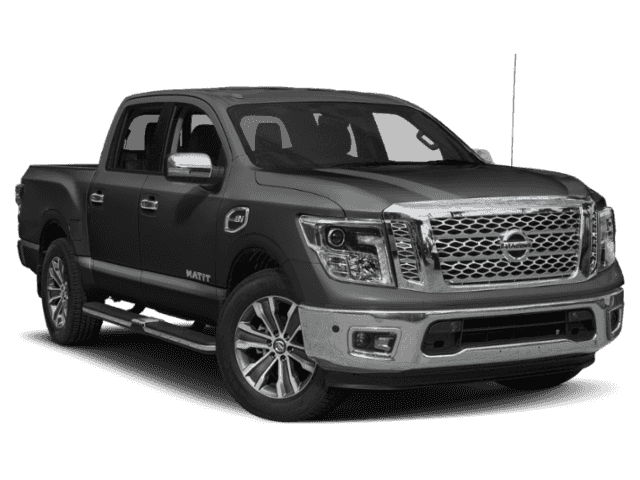
| Classification: | Reference: | Date: |
| EL19-027 | NTB19-087 | October 29, 2019 |
VOLUNTARY RECALL CAMPAIGN
2018-2019 TITAN AND TITAN XD; AV CONTROL UNIT (INFOTAINMENT) SOFTWARE UPDATE
| CAMPAIGN ID #: | R1911 |
| NHTSA #: | 19V-654 |
| APPLIED VEHICLES: | 2018-2019 Titan (A61)
2018-2019 Titan XD (A61) |
Check Service COMM or Dealer Business Systems (DBS) National Service History to confirm campaign eligibility.
INTRODUCTION
Nissan is conducting this voluntary recall campaign on certain specific model year 2018-2019 Titan and Titan XD vehicles to update the AV Control Unit (Infotainment) software. This service will be performed at no charge to the customer for parts or labor.
IDENTIFICATION NUMBER
Nissan has assigned identification number R1911 to this campaign. This number must appear on all communication and documentation of any nature dealing with this campaign.
DEALER RESPONSIBILITY
It is the dealer’s responsibility to check Service COMM or Dealer Business Systems (DBS) National Service History for the campaign status on each vehicle falling within the range of this voluntary recall which for any reason enters the service department. This includes vehicles purchased from private parties or presented by transient (tourist) owners and vehicles in a dealer’s inventory. Federal law requires that new vehicles in dealer inventory which are the subject of a recall must be corrected prior to sale. Failure to
do so can result in civil penalties by the National Highway Traffic Safety Administration. While federal law applies only to new vehicles, Nissan strongly encourages dealers to correct any used vehicles in their inventory before they are retailed.
REQUIRED SPECIAL TOOL
- Special tool USB drive J-52812-1 and J-52812-11 have been shipped to each dealer.
- Additional USB drives are available from TechMate: nissantechmate.com or 1-800-662-2001.
IMPORTANT
It is highly recommended that the provided campaign USB drive, J-52812-1 or J-52812-11, be used.
HINT:
- If unavailable, the reprogramming software may be downloaded onto special tool USB drive J-52727-1 using the Infotainment Software Download procedure.
- Special tool USB drive J-52727-1 has also been shipped to each dealer.
- Click here to access the Infotainment Software Download procedure. After the software has been downloaded, continue to the appropriate procedure in this bulletin.
SERVICE PROCEDURE
- Determine which software update procedure in this bulletin applies to your vehicle.
2018 Titan/Titan XD
- Confirm “J” is the letter displayed in the 10th position of the VIN
- Proceed to Update AV Control Unit – 2018 Titan/Titan XD (USB drive J-52812-11) on page 4
2019 Titan/Titan XD
- Confirm “K” is the letter displayed in the 10th position of the VIN
- Proceed to Update AV Control Unit – 2019 Titan/Titan XD (USB drive J-52812-1) on page 11
Update AV Control Unit – 2018 Titan/Titan XD (USB drive J-52812-11)
- Connect a battery maintainer or smart charger, and set to reflash mode or a similar setting.
NOTE: This reprogram will take approximately 60 minutes after the Update button has been selected.
- Set the parking brake.
- Turn the ignition ON (engine OFF).
- Turn ON the hazard warning lights to prevent the BCM from going into battery saver mode.
NOTE: If at any time during this procedure, the status message “Update Failed !” is displayed with the direction to “Insert update media” while a countdown from 60 is displayed or the audio unit continuously reboots (restarts), insert special tool USB drive J-52812-11 and proceed to step 15 on page 7. It may take 3-5 minutes for the system to recognize the USB drive.
- Write down the audio settings.
- Turn the audio system OFF.
- Access the SERVICE MENU.
- Press and hold down the APPS or MENU button, and at the same time rotate the TUNE-SCROLL knob more than three clicks counterclockwise, then more than three clicks clockwise, and continue rotating back and forth until the SERVICE MENU displays.
NOTE: The audio system must be OFF in order to access the SERVICE MENU.
- Select Version.
- Select Update System Software.
- Insert special tool USB drive J-52812-11 into the vehicle’s USB media port (see Figure 5 and Figure 6).
- O NOT remove the USB drive during the software update until instructed.
DO NOT insert the USB drive into a charging port (see Figure 7). Charging ports are marked in the vehicle with a “lightning bolt” symbol. If used, the software update and/or USB drive may become damaged. Only insert the USB drive in a USB media port.
- Select OK.
- Wait for the APPLICATION screen to display (Figure 9).
- Select Update.
HINT: After selecting Update, the screen will go black for up to 1 minute. This is a normal part of the update.
- Wait until the update is complete (this can take up to 60 minutes).
- The screen in Figure 10 will be displayed during the update.
- Figure 11 may display before the update begins. DO NOT remove the USB drive during the update.
IMPORTANT: If directed to skip to step 15 due to screen message “Insert update Media”, it may take 3-5 minutes before the USB drive is recognized and for the update to begin.
- When Figure 12 is displayed, remove the USB drive to complete the update.
- This will cause the system to restart and may take up to 1 minute.
NOTE: Do not turn the ignition OFF.
- If the message “No SD card is inserted. Please use a Nissan SD card only” is displayed (Figure 13), proceed to step 17 on page 9.
- If the APPLICATION screen is displayed (Figure 14), proceed to step 18 on page 9.
- If neither screen is displayed, the update is complete. Proceed to step 19 on page 10.
- Remove and reinsert the map SD card from the card slot.
- After the map SD card is reinserted, the APPLICATION screen will display (Figure 15).
- Select Update.
- The update will take about 1 minute to complete, and the screen in Figure 16 will display.
- The message “Download successful. System will reboot now” will display and the audio unit will reboot (Figure 17).
- After the system reboots, the update is complete.
- Turn the hazard warning lights OFF.
- Remove special tool USB drive J-52812-11.
- Restore the radio presets.
- Turn the ignition OFF.
IMPORTANT: Instruct the customer to go into their Bluetooth phone settings and perform the steps below.
- Delete/erase the car from their phone’s Bluetooth® menu for the current pairing of their phone and vehicle.
- Then re-pair the phone.
- If this is not done, the phone may no longer connect with the vehicle.
Update AV Control Unit – 2019 Titan/Titan XD (USB drive J-52812-1)
- Park the vehicle in a well-ventilated area.
- Set the parking brake.
- Start the engine, and then wait 60 seconds for the system to load.
The engine needs to idle for the duration of the update to retain battery charge. If the battery voltage becomes too low, the software update may not complete.
- Turn the audio system OFF.
- Insert special tool USB drive J-52812-1 into the vehicle’s USB media port (see Figure 18 and Figure 19).
- DO NOT remove the USB drive during the software update until instructed.
DO NOT insert the USB drive into a charging port (see Figure 20). Charging ports are marked in the vehicle with a “lightning bolt” symbol. If used, the software update and/or USB drive may become damaged. Only insert the USB drive in a USB media port.
- Wait approximately 10-30 seconds for the screen in Figure 21 to appear.
- The screen in Figure 22 may briefly appear. DO NOT remove the USB drive. The audio system will detect the USB drive and continue the software update.
- Wait for the software update to complete.
- Follow the on-screen instructions while waiting.
HINT: The software update will take 15-25 minutes.
- Once the software update is complete (Figure 24), remove special tool USB drive J-52812-1. The system will then reboot (restart).
IMPORTANT: The system will not reboot until the USB drive is removed.
- Allow the reboot to complete (approximately 30 seconds).
- The Nissan logo will be displayed during the reboot.
- Turn the ignition OFF.
CLAIMS INFORMATION
Submit a “CM” line claim using the following claims coding:
| CAMPAIGN (“CM”) ID | MODEL | DESCRIPTION | OP CODE | FRT |
| R1911 | 2018 Titan/Titan XD | Reprogram Audio/AV Control Unit | R19111 | 0.3 hrs |
| 2019 Titan/Titan XD | R19110 | 0.2 hrs |
AMENDMENT HISTORY
| PUBLISHED DATE | REFERENCE | DESCRIPTION |
| October 29, 2019 | NTB19-087 | Original bulletin published |
Remedy Instructions and TSB
RCRIT-19V654-5633.PDF 2643.856KB
Nissan Navigation Updates
navigation system map updates and related products for your Nissan vehicle

- Genuine OEM Nissan Map Data SD Memory Card
- Manufacturer Part Numbers: 25920-9HM0A, 25920-9HM0B, 25920-9HS0A, 5920-9HT0A
- Is A Direct Fit For The Following: 9403-06-8419
- Nissan Juke 2016-2017 Nissan Rogue Sport 2017-2018 Nissan Versa Note 2015-2017 Nissan Versa 2015-2017 Nissan NV1500 2015-2018
- Nissan NV2500 2015-2018 Nissan NV3500 2015-2018 Nissan Titan XD 2016-2018 Nissan Titan 2017-2018


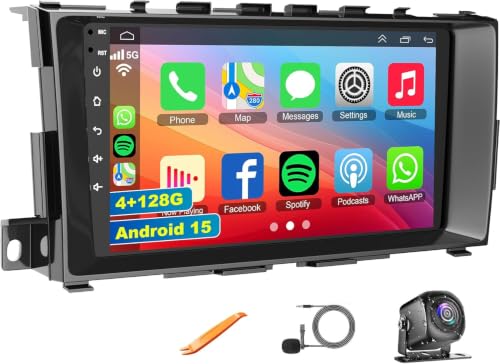
- ✅【Car Radio for 2013-2018 Nissan Altima】Easy to install and use radio dash kit is perfect fits your Nissan Altima 2013 2014 2015 2016 2017 2018 year car model. The package includes Altima radio unit, power cable, free HD 1080P backup camera, external microphone, GPS antenna etc ( If your car has a left and right rearview and 360° panoramic image, the car stereo is not compatible.)
- ✅【Wireless Carplay and Android Auto】This Altima Upgrade Replacement is compatible with wireless/wire apple CarPlay and Android Auto, you can make calls hands-free with the help of Siri or Goo-gle assistance, easy to get phone contacts, emails, notifications, map navigation, music, videos and more
- ✅【GPS Navigation & WIFI】The GPS Navigation Head Unit built-in GPS module and external GPS antenna for online or offline map navigation. Offline map data preloaded, ready to use after installation,includes voice and visual turn-by- directions 11 million+ POI library, 2D & 3D routes, fuel tracker. this car radio also supports WIFI Hot-spot connection
- ✅【Android 15 System and 4GB+128GB】Our Android 15.0 car audio receivers with 9 inch IPS Touch Screen built-in 4G RAM + 128G ROM system, ensures smooth operation and faster response. WiFI, Network, On-line surfing Available. After connected to WiFi or personal Hotspot, this Car Stereo allows you install android Apps from Application Store.
- ✅【Bluetooth Function& Steering Wheel Control】This Bluetooth5.2 radio supports answering/ making Bluetooth phone calls with hands-free. The built-in microphone picks up your voice and your car speaker can help you hear the person on the other side clearly. Use the steering wheel buttons to control the car audio, which is more convenient for operation and safer for driving
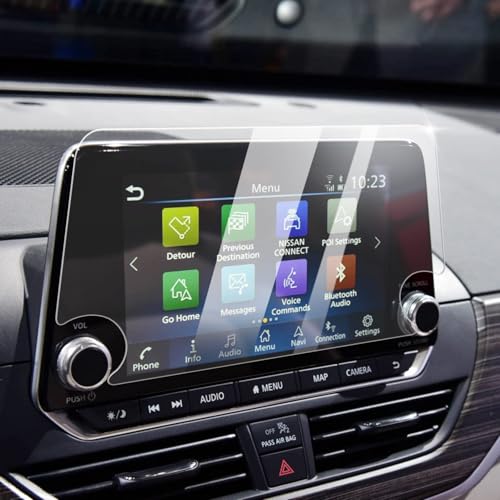
- Compatible Vehicles of Screen Protector: It is compatible with Nissan Altima 2.5 Platinum/SL/SV 2019-2022, 2.5 SR 2019-2025. For Rogue S/SV 2021-2025 2026 and Rogue Rock Creek 2026. Also For Sentra SR/SV 2020-2025 2026, which comes with 8-inch touchscreen (Not For Rogue Sport and Rogue Platinum/SL).
- Advanced Screen Protector Nissan Sentra: Advanced anti-explosion effect, strengths the hardness to 9H, enables to mitigate the wallop and prevent from scratching. It does not cause fragmentation and damage to the human body and the screen even if it ruptures, and still remain the whole one piece.
- Upgraded Nissan Sentra Screen Protector : The effect of anti-fingerprint has significant enhanced by contrast the traditional screen protector. No longer fingerprint leaves on the screen protector.
- Easy Installation: Aligning the four corners and install it, then Nissan Altima screen protector can be effectively installed to the screen, without any air bubbles leaving.
- Great Structure: The Nissan Rogue screen protector could always keep wet and have a smooth touch feel, in addition, it can reduce the glare due to there is a layer of scrub coating.
This product presentation was made with AAWP plugin.