| Classification: | Reference: | Date: |
| EL19-027 | NTB19-087 | October 29, 2019 |
VOLUNTARY RECALL CAMPAIGN
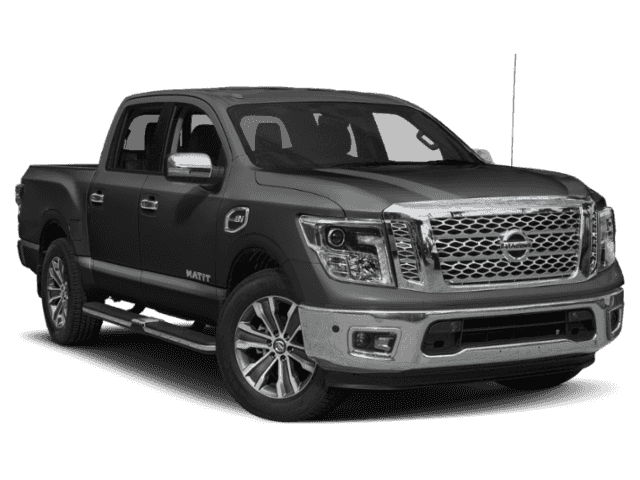
2018-2019 TITAN AND TITAN XD; AV CONTROL UNIT (INFOTAINMENT) SOFTWARE UPDATE
| CAMPAIGN ID #: | R1911 |
| NHTSA #: | 19V-654 |
| APPLIED VEHICLES: | 2018-2019 Titan (A61)
2018-2019 Titan XD (A61) |
Check Service COMM or Dealer Business Systems (DBS) National Service History to confirm campaign eligibility.
INTRODUCTION
Nissan is conducting this voluntary recall campaign on certain specific model year 2018-2019 Titan and Titan XD vehicles to update the AV Control Unit (Infotainment) software. This service will be performed at no charge to the customer for parts or labor.
IDENTIFICATION NUMBER
Nissan has assigned identification number R1911 to this campaign. This number must appear on all communication and documentation of any nature dealing with this campaign.
DEALER RESPONSIBILITY
It is the dealer’s responsibility to check Service COMM or Dealer Business Systems (DBS) National Service History for the campaign status on each vehicle falling within the range of this voluntary recall which for any reason enters the service department. This includes vehicles purchased from private parties or presented by transient (tourist) owners and vehicles in a dealer’s inventory. Federal law requires that new vehicles in dealer inventory which are the subject of a recall must be corrected prior to sale. Failure to
do so can result in civil penalties by the National Highway Traffic Safety Administration. While federal law applies only to new vehicles, Nissan strongly encourages dealers to correct any used vehicles in their inventory before they are retailed.
REQUIRED SPECIAL TOOL
- Special tool USB drive J-52812-1 and J-52812-11 have been shipped to each dealer.
- Additional USB drives are available from TechMate: nissantechmate.com or 1-800-662-2001.
IMPORTANT
It is highly recommended that the provided campaign USB drive, J-52812-1 or J-52812-11, be used.
HINT:
- If unavailable, the reprogramming software may be downloaded onto special tool USB drive J-52727-1 using the Infotainment Software Download procedure.
- Special tool USB drive J-52727-1 has also been shipped to each dealer.
- Click here to access the Infotainment Software Download procedure. After the software has been downloaded, continue to the appropriate procedure in this bulletin.
SERVICE PROCEDURE
- Determine which software update procedure in this bulletin applies to your vehicle.
2018 Titan/Titan XD
- Confirm “J” is the letter displayed in the 10th position of the VIN
- Proceed to Update AV Control Unit – 2018 Titan/Titan XD (USB drive J-52812-11) on page 4
2019 Titan/Titan XD
- Confirm “K” is the letter displayed in the 10th position of the VIN
- Proceed to Update AV Control Unit – 2019 Titan/Titan XD (USB drive J-52812-1) on page 11
Update AV Control Unit – 2018 Titan/Titan XD (USB drive J-52812-11)
- Connect a battery maintainer or smart charger, and set to reflash mode or a similar setting.
NOTE: This reprogram will take approximately 60 minutes after the Update button has been selected.
- Set the parking brake.
- Turn the ignition ON (engine OFF).
- Turn ON the hazard warning lights to prevent the BCM from going into battery saver mode.
NOTE: If at any time during this procedure, the status message “Update Failed !” is displayed with the direction to “Insert update media” while a countdown from 60 is displayed or the audio unit continuously reboots (restarts), insert special tool USB drive J-52812-11 and proceed to step 15 on page 7. It may take 3-5 minutes for the system to recognize the USB drive.
- Write down the audio settings.
- Turn the audio system OFF.
- Access the SERVICE MENU.
- Press and hold down the APPS or MENU button, and at the same time rotate the TUNE-SCROLL knob more than three clicks counterclockwise, then more than three clicks clockwise, and continue rotating back and forth until the SERVICE MENU displays.
NOTE: The audio system must be OFF in order to access the SERVICE MENU.
- Select Version.
- Select Update System Software.
- Insert special tool USB drive J-52812-11 into the vehicle’s USB media port (see Figure 5 and Figure 6).
- O NOT remove the USB drive during the software update until instructed.
DO NOT insert the USB drive into a charging port (see Figure 7). Charging ports are marked in the vehicle with a “lightning bolt” symbol. If used, the software update and/or USB drive may become damaged. Only insert the USB drive in a USB media port.
- Select OK.
- Wait for the APPLICATION screen to display (Figure 9).
- Select Update.
HINT: After selecting Update, the screen will go black for up to 1 minute. This is a normal part of the update.
- Wait until the update is complete (this can take up to 60 minutes).
- The screen in Figure 10 will be displayed during the update.
- Figure 11 may display before the update begins. DO NOT remove the USB drive during the update.
IMPORTANT: If directed to skip to step 15 due to screen message “Insert update Media”, it may take 3-5 minutes before the USB drive is recognized and for the update to begin.
- When Figure 12 is displayed, remove the USB drive to complete the update.
- This will cause the system to restart and may take up to 1 minute.
NOTE: Do not turn the ignition OFF.
- If the message “No SD card is inserted. Please use a Nissan SD card only” is displayed (Figure 13), proceed to step 17 on page 9.
- If the APPLICATION screen is displayed (Figure 14), proceed to step 18 on page 9.
- If neither screen is displayed, the update is complete. Proceed to step 19 on page 10.
- Remove and reinsert the map SD card from the card slot.
- After the map SD card is reinserted, the APPLICATION screen will display (Figure 15).
- Select Update.
- The update will take about 1 minute to complete, and the screen in Figure 16 will display.
- The message “Download successful. System will reboot now” will display and the audio unit will reboot (Figure 17).
- After the system reboots, the update is complete.
- Turn the hazard warning lights OFF.
- Remove special tool USB drive J-52812-11.
- Restore the radio presets.
- Turn the ignition OFF.
IMPORTANT: Instruct the customer to go into their Bluetooth phone settings and perform the steps below.
- Delete/erase the car from their phone’s Bluetooth® menu for the current pairing of their phone and vehicle.
- Then re-pair the phone.
- If this is not done, the phone may no longer connect with the vehicle.
Update AV Control Unit – 2019 Titan/Titan XD (USB drive J-52812-1)
- Park the vehicle in a well-ventilated area.
- Set the parking brake.
- Start the engine, and then wait 60 seconds for the system to load.
The engine needs to idle for the duration of the update to retain battery charge. If the battery voltage becomes too low, the software update may not complete.
- Turn the audio system OFF.
- Insert special tool USB drive J-52812-1 into the vehicle’s USB media port (see Figure 18 and Figure 19).
- DO NOT remove the USB drive during the software update until instructed.
DO NOT insert the USB drive into a charging port (see Figure 20). Charging ports are marked in the vehicle with a “lightning bolt” symbol. If used, the software update and/or USB drive may become damaged. Only insert the USB drive in a USB media port.
- Wait approximately 10-30 seconds for the screen in Figure 21 to appear.
- The screen in Figure 22 may briefly appear. DO NOT remove the USB drive. The audio system will detect the USB drive and continue the software update.
- Wait for the software update to complete.
- Follow the on-screen instructions while waiting.
HINT: The software update will take 15-25 minutes.
- Once the software update is complete (Figure 24), remove special tool USB drive J-52812-1. The system will then reboot (restart).
IMPORTANT: The system will not reboot until the USB drive is removed.
- Allow the reboot to complete (approximately 30 seconds).
- The Nissan logo will be displayed during the reboot.
- Turn the ignition OFF.
CLAIMS INFORMATION
Submit a “CM” line claim using the following claims coding:
| CAMPAIGN (“CM”) ID | MODEL | DESCRIPTION | OP CODE | FRT |
| R1911 | 2018 Titan/Titan XD | Reprogram Audio/AV Control Unit | R19111 | 0.3 hrs |
| 2019 Titan/Titan XD | R19110 | 0.2 hrs |
AMENDMENT HISTORY
| PUBLISHED DATE | REFERENCE | DESCRIPTION |
| October 29, 2019 | NTB19-087 | Original bulletin published |
Remedy Instructions and TSB
RCRIT-19V654-5633.PDF 2643.856KB
Nissan Navigation Updates
navigation system map updates and related products for your Nissan vehicle

- Our navigation sd card compatible with 2016 - 2020 Altima, Rogue, Sentra, Xterra, Titan, Frontier
- Compatible with 2016-2020 NV200, NV1500, NV2500, and NV3500
- With preloaded USA and Canada maps,comes with fully updated GPS maps covering all 50 U.S. states, Canada’s 13 provinces/territories, and major roads, highways, landmarks, and points of interest (POIs) for reliable navigation
- Plug-and-Play Installation, no technical expertise required, only simply insert the SD card into your vehicle’s designated GPS slot, and the maps will load automatically. No software downloads or additional fees needed
- This GPS map card is a cost-effective replacement for lost or damaged original GPS SD cards, supporting turn-by-turn directions, lane guidance, and traffic updates,please mind that navigation sd card map version maintain 2020 year
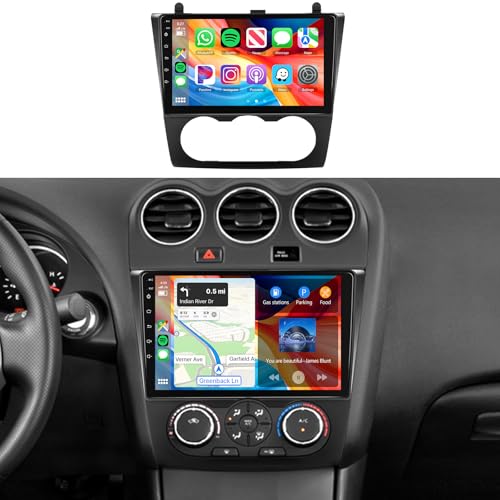
- 【Applicable Models】This car radio is compatible with Nissan Altima 2008 2009 2010 2011 2012 with Manual A/C and features a plug-and-play wiring harness.Reminder:This radio is incompatible with AUTO Air Conditioning. For inquiries, ask MAHVEC via Amazon anytime: Go to "Sold by MAHVEC" and select "Ask a question."
- 【Wireless Carplay & Android Auto】Wireless connectivity for CarPlay and Android Auto delivers superior voice - assist control. Effortlessly access your phone's apps, music, navigation, and calls while driving. No cables needed—just connect and drive
- 【2GB+64GB Upgrade Android Car Stereo】The in-dash Head unit for Nissan Altima comes with upgraded Android operating system, 2GB ram and 64GB rom ensures android car stereo runs smoothly. Equipped with DSP EQ, Build-in GPS and WiFi, 26 UIs, support wireless carplay android auto, SW, RDS FM Radio and mirror link
- 【WiFi Connection & Build-in GPS Chip】This Android radio connects to WiFi, allowing you to download various apps to enjoy music, use online GPS services such as Navitel or iGO, and update offline GPS data. The car GPS navigation system features a built-in positioning chip, supporting GPS, GLONASS, and SBAS.
- 【IPS Touch Screen 26UIs & Build-in DSP】1080P IPS touchscreen car audio system for Nissan Altima, 2.5D toughened glass resists knocks and scratches while delivering razor-sharp visuals. 26 user themes, split-screen multitasking. Lossless-grade DSP with eight EQ curves (Pop, Rock, Jazz, Classical, User etc)—slide your finger to shape the sound in real time
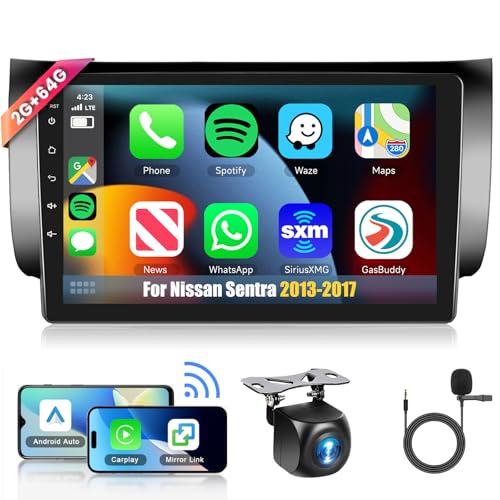
- Applicable Models: For Nissan Sentra 2013 2014 2015 2016 2017 radio.With 9-inch 2.5D 1024*600P ultra-high resolution HD touch screen,4Core, 2GB RAM and 64GB ROM configuration, touch responsive, fast operation sensing speed, colorful display with no chromatic aberration, enjoy the high-definition colorful picture. Users can customize the UI theme settings to present you a personalized and wonderful picture
- Android Car Stereo: The sentra radio Android 15 OS system, a quad-core processor, 2GB of RAM, and 64GB of ROM, guaranteeing seamless operation and quicker response times. Additionally, you can access a wide range of free apps and browse the internet by connecting to Wi-Fi
- Wireless CarPlay and Android Auto: For 2017 Nissan sentra radio with wireless CarPlay/Android Auto, there's no need to plug in phone each time you enter the car.Use maps navigation, make calls, text, or tune in to music/podcasts seamlessly. Also support wired Carplay/Android Auto
- More Functions You Concerned: The car radio for Sentra supports online/offline maps, Wi-Fi, video/subwoofer outputs, dual USB, steering wheel control, 1024*600p mirror link for iOS/Android device, 1080P 2.5D glass touchscreen, split screen, built-in Bluetooth with A2DP, FM/RDS radio, file manager, compatible with HD backup camera (included), dash cam, OBD and external mic
- Technical Support: METEESER specializes in car electronics, if you have any issues with nissan sentra stereo such as compatibility, installation, or usage, please feel free to tell us at any time
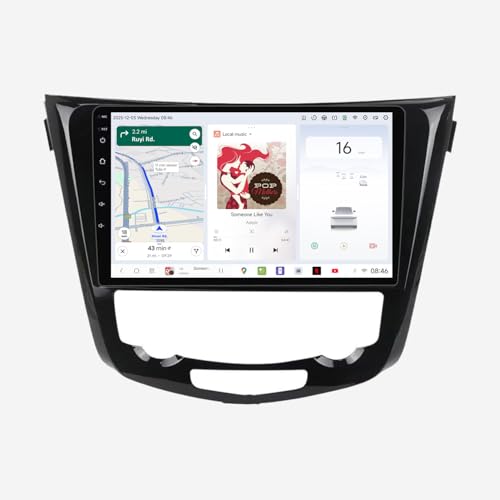
- [Plug and Play radio for NISSAN]This custom-designed touch screen radio is a perfect fit for NISSAN Rogue 2014 2015 2016 2017 2018 2019 2020,offering a true plug-and-play installation that retains all your factory features like steering wheel controls,backup camera,radio etc.
- [Powerful Performance Touch Screen for NISSAN]for NISSAN Rogue,the car stereo is powered by the advanced 8-core UIS8581 chipset and ample 4+64GB memory,this head unit delivers smooth, fast performance and robust support for running a wide range of Android applications, ensuring a responsive and versatile in-car experience
- [Seamless Connectivity via CarPlay,Android Auto or Bluetooth] Seamlessly integrate your phone to the touch screen head unit with Carplay,Android Auto or Bluetooth connection.Safely use navigation, media, and calls through the large display or with your voice, minimizing distractions
- [Custom Desktop]Freely switch between a 2 or 3-section dashboard layout, organize your essential widgets(Like Weather,Compass,Speed etc.) and apps(Music,Nav.etc.), easily change to wallpaper mode with setting your favorite photo (like family photos) as the wallpaper.Turn every drive into a warm, connected experience
- [Vibrant 10" HD Visuals, Immersive Audio]The car multimedia for NISSAN Rogue featuring a sharp 10" 1280×720 in-cell touchscreen and enhanced by the TM2313 audio processor, this system delivers a vivid view and rich, balanced sound—all in one seamless experience
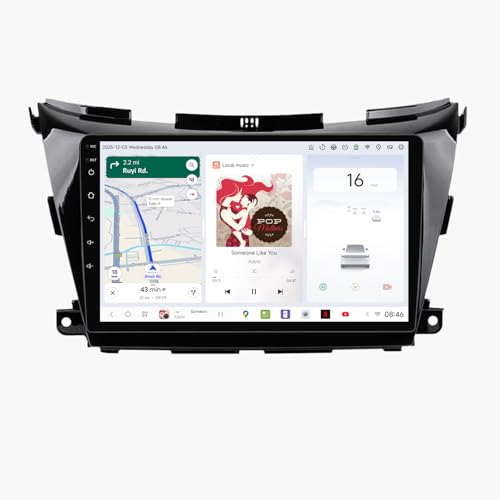
- [Plug and Play radio for NISSAN]This custom-designed touch screen radio is a perfect fit for NISSAN Murano Z52 2014 2015 2016 2017 2018 2019 2020,offering a true plug-and-play installation that retains all your factory features like steering wheel controls,backup camera,radio etc.
- [Powerful Performance Touch Screen for NISSAN]for NISSAN Murano Z52,the car stereo is powered by the advanced 8-core UIS8581 chipset and ample 4+64GB memory,this head unit delivers smooth, fast performance and robust support for running a wide range of Android applications, ensuring a responsive and versatile in-car experience
- [Seamless Connectivity via CarPlay,Android Auto or Bluetooth] Seamlessly integrate your phone to the touch screen head unit with Carplay,Android Auto or Bluetooth connection.Safely use navigation, media, and calls through the large display or with your voice, minimizing distractions
- [Custom Desktop]Freely switch between a 2 or 3-section dashboard layout, organize your essential widgets(Like Weather,Compass,Speed etc.) and apps(Music,Nav.etc.), easily change to wallpaper mode with setting your favorite photo (like family photos) as the wallpaper.Turn every drive into a warm, connected experience
- [Vibrant 10" HD Visuals, Immersive Audio]The car multimedia for NISSAN Murano Z52 featuring a sharp 10" 1280×720 in-cell touchscreen and enhanced by the TM2313 audio processor, this system delivers a vivid view and rich, balanced sound—all in one seamless experience
This product presentation was made with AAWP plugin.