| Classification: | Reference: | Date: |
| AN22-021 | NTB22-061 | July 21, 2022 |
VOLUNTARY SAFETY RECALL CAMPAIGN
INFOTAINMENT SYSTEM REBOOTS EVERY 4-5 MINUTES
CAMPAIGN ID #: PC902
APPLIED VEHICLES:
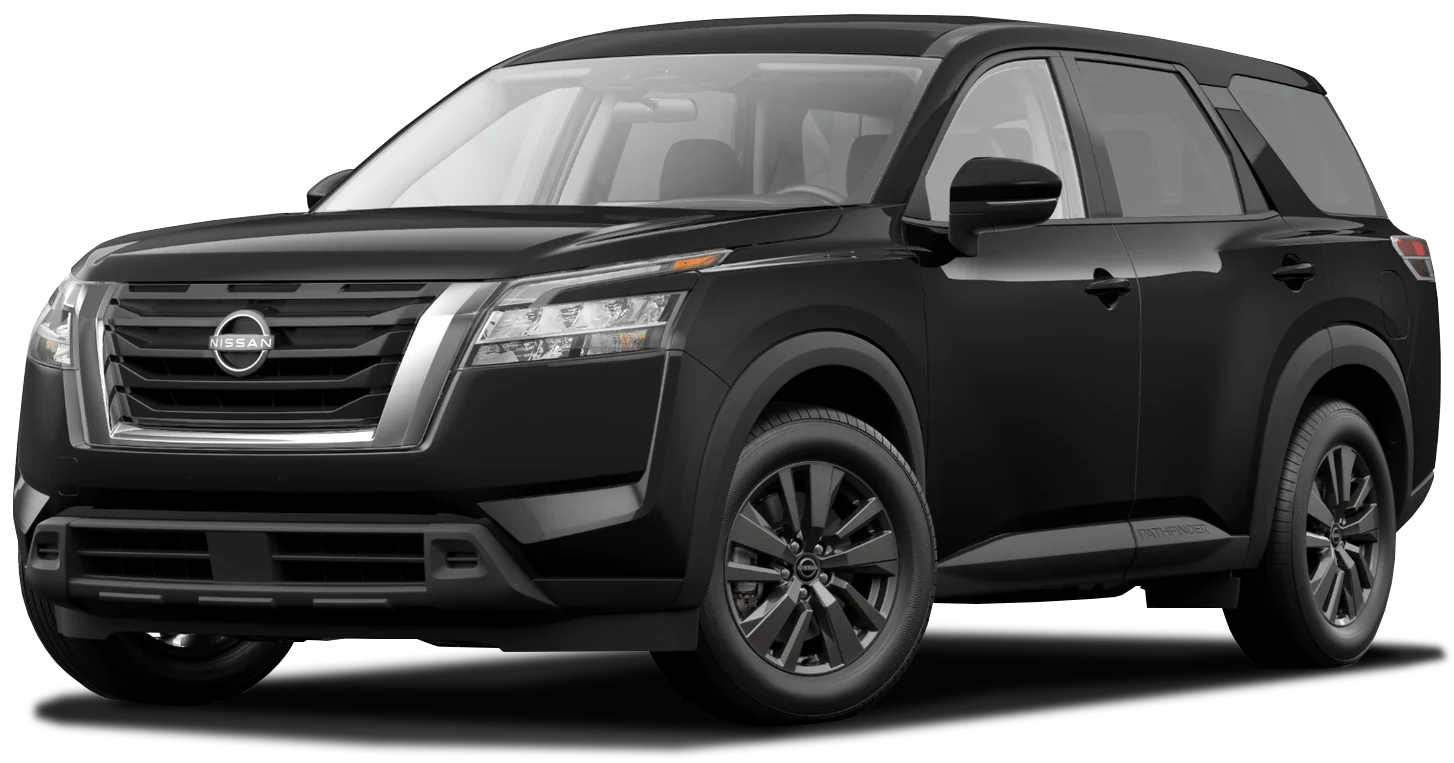
2022 Pathfinder (R53)
2021-2022 Rogue (T33)
NOTE: This bulletin applies only to certain model year 2021-2022 vehicles in Avis and Enterprise rental fleets.
INTRODUCTION
Nissan is conducting this voluntary safety recall campaign, on certain specific model year 2022 Pathfinder and 2021-2022 Rogue vehicles, to check and, if necessary, update the software of the AV Control Unit. This service will be performed at no charge to the customer for parts or labor.
IDENTIFICATION NUMBER
Nissan has assigned identification number PC902 to this campaign. This number must appear on all communication and documentation of any nature dealing with this campaign.
UPDATE PROCEDURE
Check AV Control Unit Version
WARNING
To avoid the risk of death or serious personal injury when updating software, park the vehicle in a secure, safe, well ventilated location that is open to the air and apply the parking brake.
- Start the Engine and then wait for the Infotainment system to load.
HINT: The engine needs to idle for the duration of the update to retain battery charge.
IMPORTANT:
- If at any time during the following procedure the pop-up screen shown in Figure 1 APPEARS, then:
-
- Select “Yes” and the Over-The-Air (OTA) download will complete using screen prompts.
-
- In this case, the UPDATE PROCEDURE is complete, no further action is required.
- If the Over-The-Air (OTA) pop-up screen in Figure 1 DOES NOT APPEAR, then :
-
- Continue to step 2 on page 3 to put the AV Control Unit into System Diagnostic Menu.
- Put the AV Control Unit into System Diagnostic Menu.
- Push the MENU button while turning the Tune/Scroll button at least three (3) clicks counter clockwise, then three (3) clicks clockwise, then three (3) clicks counter clockwise.
- Select Confirmation/Adjustment on the System Diagnostic Menu.
- Select down arrow on the bottom right corner of the screen to move to the next screen.
- Select Version Information.
- Write down the first four digits of Overall SW version on the Repair Order.
- Compare the first four digits of Overall SW version that was written on the Repair Order to the Overall SW Version listed in Table A.
Table A
| Model | Overall SW Version |
| Pathfinder (R53) | 5327 |
| Rogue (T33) | 4619 |
- Does the Overall SW version that was written on the Repair Order match the one in Table A for the model you are working on?
-
- YES – The OTA reprogram has already completed. No further repair is needed. Go to CLAIMS INFORMATION on the last page to submit a claim for the completion of the OTA.
-
- NO – Continue to step 8 on page 7 to update the AV Control Unit using USB drive J-52727-1 and a CONSULT PC.
REQUIRED SPECIAL TOOL
- One of the special tool USB drive J-52727-1 was previously shipped to each dealer and should already be available (Figure 7).
- Do not use any other USB drive to perform the procedure in this bulletin.
HINT: The update software must be the only file on the USB drive.
- Additional USB drives may be purchased from TechMate: www.techmatetools.com or 1-833-397-3493.
-
- The part number for a replacement USB drive has changed to NI-52727-1.
Update the AV Control Unit
IMPORTANT: Before starting, make sure:
- Insert special tool USB drive J-52727-1 into the CONSULT PC.
- If the infotainment software has already been downloaded onto special tool USB drive J-52727-1 from a prior service procedure, skip to step 17 on page 11.
HINT:
-
- The update software is estimated to take 4 hours to download to the USB drive.
-
- The update software must be the only file on the USB drive.
- Open ASIST.
- Select Specialty Tools, and then select Infotainment Software Updates.
- Use the drop-down menu and select the location of the USB drive that was inserted in step 8 on page 7.
- Select the Infotainment Update Software related to the model on the Repair Order (refer to Table B below).
Table B
| Model | Infotainment Update Software |
| Pathfinder (R53) | IVI5327 |
| Rogue (T33) | IVI4619 |
- Select Download (Figure 9 on page 8), and then wait for the download to complete.
HINT:
- The update software is estimated to take 4 hours to download to the USB drive.
- If, while attempting to download the software to the CONSULT PC, you receive the message shown in Figure 10:
a. First attempt to clear space on the CONSULT PC hard drive.
b. If space cannot be cleared and a second CONSULT PC is available with space, use it and start over from step 8 on page 7.
- Select OK.
- Once the transfer is complete, safely remove the USB drive from the CONSULT PC.
a. From the PC toolbar, select the Safely Remove Hardware icon.
-
- The icon is on the toolbar, or can be found after selecting the arrow.
b. Select the USB drive to be removed, and then remove the USB drive from the CONSULT PC.
NOTICE
Follow the steps to safely remove the USB drive. If not followed, the USB drive may corrupt the infotainment update software.
-
- If you are not familiar with the process of safe USB drive removal, ask for assistance at your dealer.
- Close all ASIST Infotainment Software Update
- Set the parking brake.
- Start the engine, and then wait 60 seconds for the system to load.
HINT: The engine needs to idle for the duration of the update to retain battery charge.
- Insert the USB drive with the infotainment update software into the vehicle’s USB media port (Figure 13).
- Do not remove the USB drive during the update to the vehicle until instructed to.
HINT: Charging ports are marked in the vehicle with a “lightning bolt” symbol.
NOTICE
Do not insert the USB drive into a charging port. If used, the update software and/or USB drive may become damaged. Only insert the USB drive in a USB media port.
- Wait approximately 10-30 seconds for the screen in Figure 15 to appear.
- The screen in Figure 16 may briefly appear. Do not remove the USB drive. The audio system will detect the USB drive and continue the update.
- Wait for the update to complete.
- Follow the on-screen instructions while waiting.
HINT: The update may take 15-25 minutes.
- Once the update is complete (Figure 18), remove the USB drive; the system will reboot (restart).
HINT: The system will not reboot until the USB drive is removed.
NOTICE
Steps 23-32 on pages 13-14 must be completed. If they are not completed, the update may become corrupted.
- Allow the reboot to complete (approximately 30 seconds).
- The Nissan logo will be displayed during the reboot.
- Turn the ignition OFF.
The steps below will fully reboot the infotainment system twice.
- Open and close the driver door, and then ensure that all doors are closed.
- Lock the doors.
- Wait 5 minutes.
NOTICE
Ensure that all doors remain closed during the 5-minute wait period. If a door is opened during the 5-minute wait period, the update may not complete and the AV Control Unit may become inoperable.
- Unlock the doors.
HINT: The engine does not need to be running for the next steps.
- If the Nissan logo does not appear (this might take up to 30 seconds), start over from step 24 on page 13.
- After the Nissan logo appears, wait about 1 minute.
- The MENU (Home) screen in Figure 20 will be displayed.
- Turn the ignition OFF.
- Repeat Steps 25-31 one more time (for a total of two times) to complete the update.
R22A5 PC901 PC902 – Infotainment System Reboots Every 4-5 Minutes – 2021-2022 Nissan Rogue, 2022 Frontier, Pathfinder, & Titan
NTB22-061 – Infotainment System Reboots Every 4-5 Minutes – 2022 Nissan Pathfinder & 2021-2022 Rogue
Remedy Instructions and TSB
RCRIT-22V527-1280.pdf 2263.329KB
Latest Recalls Documents

- USB-C 2-in-1 storage OTG: The Lexar JumpDrive Dual Drive D40E features USB Type-A and Type-C connectors in a slim, portable form factor for easy device compatibility
- Transfer speeds up to 100MB/s: Based on internal testing, performance may vary depending upon the host device, interface, and usage conditions. 1MB=1,000,000 bytes
- Plug and Play: Widely compatible with USB Type-C smartphones, tablets, laptops, Macs, and traditional Type-A devices, no software installation required. The 360° swivel design allows for easy switching between connectors without the hassle of losing a cap
- Durable & Compact: The Lexar D40E USB memory stick features a metal enclosure, withstands temperatures from 0° to 50° C (32°F to 122°F), and is lightweight at 26g with dimensions of 70.4 x 16.9 x 11.7mm
- Security & Warranty: Securely protects files using an advanced security software solution with 256-bit AES encryption. Backed by a Lexar 3-year limited warranty

- GOOD VALUE PACKAGE - 1 Pack 32GB Memory Stick USB 2.0 Flash Drives with great cost performance and high quality.
- BIG CAPACITY - The available capacity: 29.10GB-29.8GB, You can save the data of movies, music, photos, designs, programs, manuals, handouts in a high speed.Good performance in digital data storing, transferring and sharing with families, friends, workmates, clients and machines.
- EASY TO USE & PLUG AND WORK - Support windows 7 / 8 / 10 / Vista / XP / 2000 / ME / NT Linux and Mac OS, Compatible with USB2.0 and below.
- TWISTTURN DESIGN & EASY CARRY - The metal clip rotates 360° round the ABS plastic body which with rubber oil skin feeling finish. The capless design can avoid lossing of cap, and providing efficient protection to the USB port.
- WARRANTY & SUPPORT - SIMMAX logo is laser printed on the USB connector surface, our products are of good quality and we promise that any problem about the product within one year since you buy.

- The durable, light-weight design of the Turbo Attaché 3 USB 3.0 Flash Drive is the essential mobile storage solution
- Perfect for transferring large files such as movies, videos, photos, music & documents
- Transfer speeds up to 10 times faster than standard USB 2.0 flash drives
- Convenient sliding collar, and cap-less design protects your content when not in use
- Compatible with most PC and Mac laptop and desktop computers with USB 3.0 ports

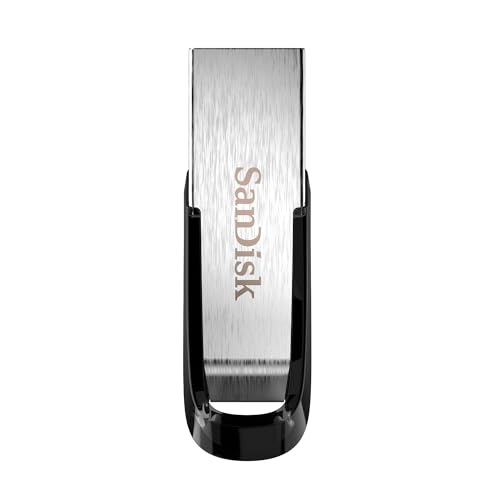
- High-speed USB 3.0 performance of up to 150MB/s(1) [(1) Write to drive up to 15x faster than standard USB 2.0 drives (4MB/s); varies by drive capacity. Up to 150MB/s read speed. USB 3.0 port required. Based on internal testing; performance may be lower depending on host device, usage conditions, and other factors; 1MB=1,000,000 bytes]
- Transfer a full-length movie in less than 30 seconds(2) [(2) Based on 1.2GB MPEG-4 video transfer with USB 3.0 host device. Results may vary based on host device, file attributes and other factors]
- Transfer to drive up to 15 times faster than standard USB 2.0 drives(1)
- Sleek, durable metal casing
- Easy-to-use password protection for your private files(3) [(3)Password protection uses 128-bit AES encryption and is supported by Windows 7, Windows 8, Windows 10, and Mac OS X v10.9 plus; Software download required for Mac, visit the SanDisk SecureAccess support page]
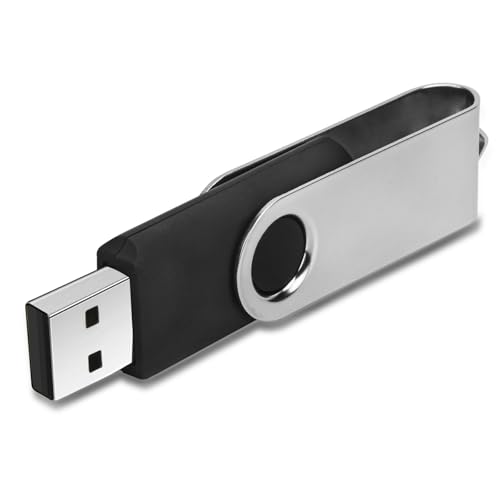
- 【16GB Flash Drive】USB flash drives with 16GB capacity, meet your needs of daily use on work, school, home and travelling for photos, music, videos, files storage and transfer. IMEASON thumb drives can be used to store different files, easy to data backup.
- 【Metal Swivel Cap Design】USB thumb drive is metal swivel cover provides extra protection for the usb thumbdrive connector, no usb drive cap to lose; keychain design makes it easier to carry without worrying lose it.
- 【Wide Compatibility】USB drive supports Windows 7/8/10/11 / Vista / XP / Unix / 2000 / ME / NT Linux and Mac OS, also Supports USB 2.0 and 1.1 ports. USB Stick support TV, desktop, notebook computer, car, audio and other device. The USB Memory Stick is your great data storage and transfer companion with traveling and working.
- 【Easy to use】usb memory stick is plug and play without any software installation. Just simply plug the Flashdrive into the port of your USB-compatible devices such as computer, laptop to start data storage or transmission.
- 【What You Get】16 GB USB Flash Drive Thumb Drive, The default format of the usb storage flash drive is FAT32.
SEOCONTENT-START
Classification: Reference: Date: AN22-021 NTB22-061 July 21, 2022 Bulletins are intended for use by qualified technicians, not ‘do-it-yourselfers’. Qualified technicians are properly trained individuals who have the equipment, tools, safety instruction, and know-how to do a job properly and safely. NOTE: If you believe that a described condition may apply to a particular vehicle, DO NOT assume that it does. See your Nissan dealer to determine if this applies to your vehicle. 1/15 VOLUNTARY SAFETY RECALL CAMPAIGN INFOTAINMENT SYSTEM REBOOTS EVERY 4-5 MINUTES CAMPAIGN ID #: PC902 APPLIED VEHICLES: 2022 Pathfinder (R53) 2021-2022 Rogue (T33) Check Service COMM or Dealer Business Systems (DBS) National Service History to confirm campaign eligibility. NOTE: This bulletin applies only to certain model year 2021-2022 vehicles in Avis and Enterprise rental fleets. INTRODUCTION Nissan is conducting this voluntary safety recall campaign, on certain specific model year 2022 Pathfinder and 2021-2022 Rogue vehicles, to check and, if necessary, update the software of the AV Control Unit. This service will be performed at no charge to the customer for parts or labor. IDENTIFICATION NUMBER Nissan has assigned identification number PC902 to this campaign. This number must appear on all communication and documentation of any nature dealing with this campaign. DEALER RESPONSIBILITY It is the dealer’s responsibility to check Service COMM or Dealer Business Systems (DBS) National Service History for the campaign status on each vehicle falling within the range of this voluntary safety recall which for any reason enters the service department. This includes vehicles purchased from private parties or presented by transient (tourist) owners and vehicles in a dealer’s inventory. Federal law requires that new vehicles in dealer inventory which are the subject of a safety recall must be corrected prior to sale. Failure to do so can result in civil penalties by the National Highway Traffic Safety Administration. While federal law applies only to new vehicles, Nissan strongly encourages dealers to correct any used vehicles in their inventory before they are retailed. 2/15 NTB22-061 UPDATE PROCEDURE Check AV Control Unit Version To avoid the risk of death or serious personal injury when updating software, park the vehicle in a secure, safe, well ventilated location that is open to the air and apply the parking brake. 1. Start the Engine and then wait for the Infotainment system to load. Fully depress the brake pedal and press the “START ENGINE STOP” button. HINT: The engine needs to idle for the duration of the update to retain battery charge. IMPORTANT: If at any time during the following procedure the pop-up screen shown in Figure 1 APPEARS, then: o Select “Yes” and the Over-The-Air (OTA) download will complete using screen prompts. o In this case, the UPDATE PROCEDURE is complete, no further action is required. o Go to CLAIMS INFORMATION to submit a claim for the completion of the OTA download. If the Over-The-Air (OTA) pop-up screen in Figure 1 DOES NOT APPEAR, then : o Continue to step 2 on page 3 to put the AV Control Unit into System Diagnostic Menu. Figure 1 3/15 NTB22-061 2. Put the AV Control Unit into System Diagnostic Menu. Push the MENU button while turning the Tune/Scroll button at least three (3) clicks counter clockwise, then three (3) clicks clockwise, then three (3) clicks counter clockwise. Figure 2 3. Select Confirmation/Adjustment on the System Diagnostic Menu. Figure 3 4/15 NTB22-061 4. Select down arrow on the bottom right corner of the screen to move to the next screen. Figure 4 5. Select Version Information. Figure 5 5/15 NTB22-061 6. Write down the first four digits of Overall SW version on the Repair Order. Figure 6 7. Compare the first four digits of Overall SW version that was written on the Repair Order to the Overall SW Version listed in Table A. Table A Model Overall SW Version Pathfinder (R53) 5327 Rogue (T33) 4619 Does the Overall SW version that was written on the Repair Order match the one in Table A for the model you are working on? o YES – The OTA reprogram has already completed. No further repair is needed. Go to CLAIMS INFORMATION on the last page to submit a claim for the completion of the OTA. o NO – Continue to step 8 on page 7 to update the AV Control Unit using USB drive J-52727-1 and a CONSULT PC. 6/15 NTB22-061 REQUIRED SPECIAL TOOL One of the special tool USB drive J-52727-1 was previously shipped to each dealer and should already be available (Figure 7). Do not use any other USB drive to perform the procedure in this bulletin. HINT: The update software must be the only file on the USB drive. Additional USB drives may be purchased from Tech•Mate: www.techmatetools.com or 1-833-397-3493. o The part number for a replacement USB drive has changed to NI-52727-1. Figure 7 7/15 NTB22-061 Update the AV Control Unit IMPORTANT: Before starting, make sure: ASIST is connected to the internet. ASIST has been synchronized (updated) to the current date. 8. Insert special tool USB drive J-52727-1 into the CONSULT PC. If the infotainment software has already been downloaded onto special tool USB drive J-52727-1 from a prior service procedure, skip to step 17 on page 11. HINT: o Special tool USB drive J-52727-1 is the only USB drive approved for use with this procedure. o The update software is estimated to take 4 hours to download to the USB drive. o The update software must be the only file on the USB drive. 9. Open ASIST. 10. Select Specialty Tools, and then select Infotainment Software Updates. Figure 8 Specialty Tools Infotainment Software Updates 8/15 NTB22-061 11. Use the drop-down menu and select the location of the USB drive that was inserted in step 8 on page 7. Figure 9 12. Select the Infotainment Update Software related to the model on the Repair Order (refer to Table B below). Table B Model Infotainment Update Software Pathfinder (R53) IVI5327 Rogue (T33) IVI4619 D:\ IVI5327 Check box USB drive location Version: Drop-down menu Infotainment update software 9/15 NTB22-061 13. Select Download (Figure 9 on page 8), and then wait for the download to complete. HINT: o The update software is estimated to take 4 hours to download to the USB drive. o If, while attempting to download the software to the CONSULT PC, you receive the message shown in Figure 10: a. First attempt to clear space on the CONSULT PC hard drive. b. If space cannot be cleared and a second CONSULT PC is available with space, use it and start over from step 8 on page 7. Figure 10 14. Select OK. Figure 11 10/15 NTB22-061 15. Once the transfer is complete, safely remove the USB drive from the CONSULT PC. a. From the PC toolbar, select the Safely Remove Hardware icon. o The icon is on the toolbar, or can be found after selecting the arrow. b. Select the USB drive to be removed, and then remove the USB drive from the CONSULT PC. Follow the steps to safely remove the USB drive. If not followed, the USB drive may corrupt the infotainment update software. o If you are not familiar with the process of safe USB drive removal, ask for assistance at your dealer. Figure 12 Safely Remove Hardware icon USB Drive (E:) Arrow on toolbar 11/15 NTB22-061 16. Close all ASIST Infotainment Software Update screens. 17. Set the parking brake. 18. Start the engine, and then wait 60 seconds for the system to load. HINT: The engine needs to idle for the duration of the update to retain battery charge. 19. Insert the USB drive with the infotainment update software into the vehicle’s USB media port (Figure 13). Do not remove the USB drive during the update to the vehicle until instructed to. HINT: Charging ports are marked in the vehicle with a “lightning bolt” symbol. Do not insert the USB drive into a charging port. If used, the update software and/or USB drive may become damaged. Only insert the USB drive in a USB media port. Figure 13 Figure 14 DO NOT USE USB ports with a “lightning bolt” USB media port symbol 12/15 NTB22-061 Figure 15 Figure 16 21. Wait for the update to complete. Follow the on-screen instructions while waiting. HINT: The update may take 15-25 minutes. Figure 17 20. Wait approximately 10-30 seconds for the screen in Figure 15 to appear. The screen in Figure 16 may briefly appear. Do not remove the USB drive. The audio system will detect the USB drive and continue the update. xxxxxxx 13/15 NTB22-061 22. Once the update is complete (Figure 18), remove the USB drive; the system will reboot (restart). HINT: The system will not reboot until the USB drive is removed. Figure 18 Steps 23-32 on pages 13-14 must be completed. If they are not completed, the update may become corrupted. Figure 19 23. Allow the reboot to complete (approximately 30 seconds). The Nissan logo will be displayed during the reboot. 24. Turn the ignition OFF. 14/15 NTB22-061 The steps below will fully reboot the infotainment system twice. 25. Open and close the driver door, and then ensure that all doors are closed. 26. Lock the doors. 27. Wait 5 minutes. Ensure that all doors remain closed during the 5-minute wait period. If a door is opened during the 5-minute wait period, the update may not complete and the AV Control Unit may become inoperable. 28. Unlock the doors. HINT: The engine does not need to be running for the next steps. 29. Turn the ignition ON (engine OFF) and wait for the Nissan logo to appear (Figure 19 on page 13). If the Nissan logo does not appear (this might take up to 30 seconds), start over from step 24 on page 13. Figure 20 32. Repeat Steps 25-31 one more time (for a total of two times) to complete the update. 30. After the Nissan logo appears, wait about 1 minute. The MENU (Home) screen in Figure 20 will be displayed. 31. Turn the ignition OFF. 15/15 NTB22-061 CLAIMS INFORMATION Submit a “CM” line claim using the following claims coding: CAMPAIGN (“CM”) ID DESCRIPTION OP CODE FRT PC902 No Software Update Required OR Perform OTA Software Update PC9020 0.2 Perform USB Software Update PC9021 0.3 AMENDMENT HISTORY PUBLISHED DATE REFERENCE DESCRIPTION July 21, 2022 NTB22-061 Original bulletin published
SEOCONTENT-END
This product presentation was made with AAWP plugin.