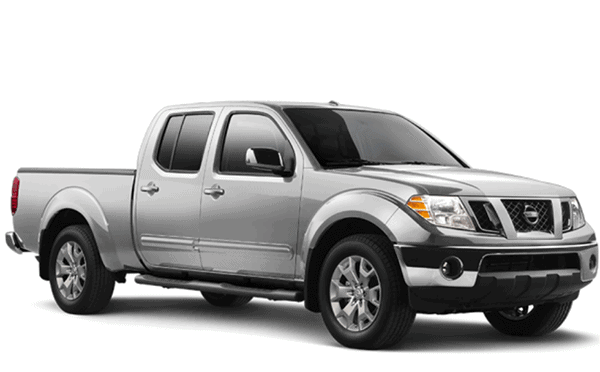
QUICK REFERENCE GUIDE
2020 FRONTIER
COCKPIT OVERVIEW
Low Tire Pressure Warning Light
Headlight and Turn Signal Switch
Trip Computer
Instrument Brightness Control / Trip Change Button
Wiper and Washer Switch
Steering Wheel Switches for Audio Control/Bluetooth®
Cruise Control Switches
Outside Mirror Control Switch
Hill Descent Control Switch
Cargo Lamp Switch
Steering Wheel Tilt Adjustment
Hood Release
INSTRUMENT PANEL
Audio and Navigation System
Heater and Air Conditioner Controls
Front Passenger Air Bag Status Light
4-Wheel Drive (4WD) Shift Switch
Vehicle Dynamic Control (VDC) OFF Switch OFF
Rear Sonar System (RSS) OFF Switch OFF
Electronic Locking Rear Differential (E-Lock) Switch LOCK
USB/AUX Jack
Heated Seat Switches
Power Outlet 12V/120W
TABLE OF CONTENTS
GETTING STARTED
Nissan Intelligent Key®………………………………………………………..2
Power Seat Adjustments (if so equipped) ………………………………………2
Starting/Stopping the Engine …………………………………………………3
Outside Mirror Control Switch (if so equipped) ………………………………….3
HomeLink® Universal Transceiver (if so equipped)……………………………….4
Heater and Air Conditioner (automatic) (if so equipped) …………………………5
Heated Seats (if so equipped)………………………………………………….6
Headlight Control Switch ……………………………………………………..7
Wiper and Washer Switch……………………………………………………..8
Trip Computer ……………………………………………………………….8
Tire Pressure Monitoring System (TPMS) ……………………………………….9
Loose Fuel Cap……………………………………………………………….9
Fuel-filler Door ………………………………………………………………10
Power Moonroof (if so equipped)……………………………………………..10
Opening the Tailgate…………………………………………………………10
AUDIO, NAVIGATION AND BLUETOOTH® SYSTEMS
Clock Set/Adjustment ………………………………………………………..11
USB (Universal Serial Bus) Connection Port/AUX Jack and iPod® Interface………..11
Bluetooth® Hands-free Phone System ………………………………………..12
- System Operating Tips …………………………………………………..12
SiriusXM® Travel Link and SiriusXM® Traffic (if so equipped)……………………..14
FM/AM/SiriusXM® Radio with CD Player (if so equipped)………………………..14
Navigation System (if so equipped)……………………………………………15
NissanConnect® Mobile Apps (if so equipped)………………………………….17
Hands-free Text Messaging Assistant (if so equipped) ………………………….18
Siri® Eyes Free ……………………………………………………………….19
DRIVING FEATURES
Cruise Control……………………………………………………………….20
RearView Monitor……………………………………………………………21
Hill Descent Control (if so equipped)…………………………………………..21
Hill Start Assist (if so equipped) . . . . . . . . . . . . . . . . . . . . . . . . . . . . . . . . . . . . . . . . . . . . . . . . . . . . . . . 21
Vehicle Dynamic Control (VDC) and Rear Sonar System (RSS) (if so equipped) ……22
Manual Shift Mode…………………………………………………………..22
Helpful Resources
Below is a list of helpful resources that can be used to learn more about the vehicle’s systems and feature operations.
- Vehicle Owner’s Manual
- NissanConnect® Owner’s Manual (if so equipped)
- Printed Quick Reference Guide (this document)
- www.NissanUSA.com/bluetooth
- www.NissanUSA.com/connect
- www.youtube.com/user/NissanUSA
- Nissan Consumer Aff airs: 1-800-647-7261
- Electronic Quick Reference Guide (Use Quick Response (QR) code or URL below.)
- Nissan Quick Guide (available in the App Store® or Google Play™ store for download to your smartphone)
To view detailed instructional videos,
go to www.nissanquickguide.com/2020/frontier
or snap this barcode with an appropriate barcode reader.
To view detailed instructional videos regarding these and other features, please go to www.nissanownersinfo.mobi.
SEOCONTENT-START
2020FRONTIER QUICK REFERENCE GUIDE
COCKPIT OVERVIEW
Underneath
instrument
panel
Low Tire Pressure Warning Light
Headlight and Turn Signal Switch
Trip Computer
Instrument Brightness Control / Trip Change Button
Wiper and Washer Switch
Steering Wheel Switches for Audio Control/Bluetooth®
Cruise Control Switches
Outside Mirror Control Switch
Hill Descent Control Switch
Cargo Lamp Switch
Steering Wheel Tilt Adjustment
Hood Release
COCKPIT OVERVIEW
INSTRUMENT PANEL
INSTRUMENT PANEL
Audio and Navigation System
Heater and Air Conditioner Controls
Front Passenger Air Bag Status Light
4-Wheel Drive (4WD) Shift Switch
Vehicle Dynamic Control (VDC) OFF Switch OFF
Rear Sonar System (RSS) OFF Switch OFF
Electronic Locking Rear Differential (E-Lock) Switch LOCK
USB/AUX Jack
Heated Seat Switches
Power Outlet 12V/120W
GETTING STARTED
Additional information about your vehicle is also available in your Owner’s Manual,
NissanConnect® Owner’s Manual and at www.NissanUSA.com.
TABLE OF CONTENTS
Please see your Owner’s Manual for important safety information and system operation limitations.
• A cellular telephone should not be used for any purpose while driving so full attention may be given
to vehicle operation.
• Always wear your seat belt.
• Supplemental air bags do not replace proper seat belt usage.
• Children 12 and under should always ride in the rear seat properly secured in child restraints or seat
belts according to their age and weight.
• Do not drink and drive.
For more information, refer to the “Safety — Seats, seat belts and supplemental restraint system
(section 1)”, the “Monitor, climate, audio, phone and voice recognition systems
(section 4)” and the “Starting and driving (section 5)” of your Owner’s Manual.
To view detailed instructional videos regarding these and other features,
please go to www.nissanownersinfo.mobi. 2
GETTING STARTED
NISSAN INTELLIGENT KEY®
The Nissan Intelligent Key® allows you to lock or
unlock your vehicle and turn on the interior lights.
It is important to make sure the Intelligent Key is
with you (that is, in your pocket or purse).
To lock the vehicle, press the button
on your key fob.
To unlock the driver’s door, press the
button on your key fob.
Press the button again within 5 seconds
and all doors will unlock.
The Intelligent Key can also be used to
activate the panic alarm by pressing and holding the button for more than
1 second. Once activated, the panic alarm and headlights will stay on for a
period of time.
Press any button on the key fob to turn the panic alarm off.
Please see your Owner’s Manual for important safety information, system limitations, and additional
operating and feature information.
For more information, refer to the “Pre-driving checks and adjustments (section 3)” of your
Owner’s Manual.
POWER SEAT ADJUSTMENTS (if so equipped)
To slide the seat forward or backward, push
the switch forward or backward.
To adjust the angle of the seatback, push the
switch forward or backward.
SEAT LIFTER (driver’s seat)
To adjust the angle and the height of the seat
cushion, push the front or rear end of the
switch up or down.
MANUAL LUMBAR SUPPORT (driver’s seat)
To adjust the lumbar area, move the lever
forward or backward.
Please see your Owner’s Manual for important safety
information, system limitations, and additional operating and
feature information.
For more information, refer to the “Safety — Seats, seat belts and supplemental restraint system
(section 1)” of your Owner’s Manual.
To view detailed instructional videos regarding these and other features,
3 please go to www.nissanownersinfo.mobi.
STARTING/STOPPING THE ENGINE
AUTOMATIC TRANSMISSION
Depress the brake pedal.
Move the shift lever to the P (PARK) position.
Push the ignition switch to the ON position.
TURNING THE ENGINE OFF
Move the shift lever to the P (Park) position,
apply the parking brake and push the ignition
switch to the OFF position.
Please see your Owner’s Manual for important safety
information, system limitations, and additional operating and
feature information.
For more information, refer to the “Starting and driving
(section 5)” of your Owner’s Manual.
OUTSIDE MIRROR CONTROL SWITCH (if so equipped)
The outside mirror control switch is located
on the left side of the instrument panel.
To select the left or right mirror,
move the switch .
Adjust each mirror to the desired position
using the switch .
To prevent accidentally moving the
mirror, move the switch to the center
(neutral) position.
Please see your Owner’s Manual for important safety information, system limitations, and additional
operating and feature information.
For more information, refer to the “Pre-driving checks and adjustments (section 3)” of your
Owner’s Manual.
GETTING STARTED
To view detailed instructional videos regarding these and other features,
please go to www.nissanownersinfo.mobi. 4
HOMELINK® UNIVERSAL TRANSCEIVER (if so equipped)
The HomeLink® Universal Transceiver can learn and consolidate the functions
of up to three different hand-held transmitters, operating items such as garage
doors, property gates, outdoor and indoor lights or alarm systems.
Place the ignition switch in the ON or ACC position (without starting the engine)
when programing Homelink.
To program the HomeLink Universal Transceiver:
• Position the handheld transceiver 1-3 in (2-8 cm) away from the HomeLink
surface, keeping the HomeLink indicator light in view.
• Press and hold the desired HomeLink button and the handheld transmitter
button simultaneously until the HomeLink indicator light flashes slowly
and then rapidly.
• Both buttons may be released when the indicator light flashes rapidly.
To verify the programing is complete, press and hold the HomeLink button and
observe the indicator light:
• A solid, continuous light indicates the programing is complete and the
HomeLink button will activate your device.
• A blinking light that turns to a solid, continuous light after 2 seconds indicates
additional steps are required to complete the programing.
An additional person may make the remaining steps easier. To complete the
programing process:
• At the receiver of the device that you are programing to the HomeLink
system, press and release the learn or smart button (the name may vary by
manufacturer, but it is usually located near where the hanging antenna wire
is attached to the unit). You have approximately 30 seconds to initiate the
following step.
• Press and hold the programed HomeLink button for 2 seconds and release.
You may have to repeat the previous two steps up to three times to complete
the programing process. HomeLink should now activate your device.
Please see your Owner’s Manual for important safety information, system limitations, and additional
operating and feature information.
For more information, refer to the “Instruments and controls (section 2)” of your Owner’s Manual, the
HomeLink website at www.homelink.com or call 1-800-355-3515.
HOMELINK®
To view detailed instructional videos regarding these and other features,
5 please go to www.nissanownersinfo.mobi.
HEATER AND AIR CONDITIONER (automatic) (if so equipped)
AUTO BUTTON/DRIVER’S SIDE TEMPERATURE CONTROL DIAL
The automatic mode may be used year-round. Press the AUTO button to
turn the system on, and the system will automatically control the inside
temperature (automatic cooling and/or dehumidified heating), air flow
distribution and fan speed.
Turn the driver’s side temperature control dial left for cooler air or right
for warmer air.
DUAL BUTTON/PASSENGER’S SIDE TEMPERATURE CONTROL DIAL
Press the DUAL button to turn the passenger’s side temperature controls
on or off. This will allow the passenger’s side temperature to be adjusted
independently from the driver’s side.
Turn the passenger’s side temperature control dial left for cooler air or right
for warmer air.
FAN SPEED CONTROL DIAL/OFF BUTTON
Turn the dial to the left to decrease fan speed or to the right to
increase fan speed.
Press the button to turn the system off.
To stop air from coming through the vents with the blower off, press the
air recirculation button .
AIR FLOW CONTROL BUTTONS
Press one of the following air flow control buttons to manually
control air flow:
Air flows from the center and side vents.
Air flows from the center, side and foot outlets.
Air flows mainly from the foot outlets.
Air flows from the front defroster and foot outlets.
DEFROSTING FRONT AND SIDE WINDOWS
Press the front defroster button to turn the system on. The A/C
automatically turns on when the front defroster mode is selected. This
feature removes humidity from the air.
Set the temperature control dial and the fan speed control dial to
their maximum settings.
GETTING STARTED
To view detailed instructional videos regarding these and other features,
please go to www.nissanownersinfo.mobi. 6
REAR WINDOW AND OUTSIDE MIRROR DEFROSTER SWITCH (if so equipped)
Push the rear window and outside mirror defroster switch to turn the
system on or off.
The rear window and outside mirror defroster automatically turns off after
approximately 15 minutes.
AIR RECIRCULATION BUTTON
Press the air recirculation button to recirculate air inside the vehicle.
The indicator light on the button will illuminate. This system is used to avoid
certain outside odors and to help adjust the inside vehicle temperature
more effectively.
Press the air recirculation button again to turn air recirculation off. This
allows outside air to be drawn into the passenger compartment to prevent
fogging in the front defroster, foot vent or front defroster/foot outlet mode.
The air recirculation mode cannot be activated when the climate control
system is in the front defroster mode or the front defroster and
foot vent mode .
A/C BUTTON
Press the A/C button to manually turn the A/C on or off.
Please see your Owner’s Manual for important safety information, system limitations, and additional
operating and feature information.
For more information, refer to the “Instruments and controls (section 2)” and the “Monitor, climate,
audio, phone and voice recognition systems (section 4)” of your Owner’s Manual.
HEATED SEATS (if so equipped)
Push the or heated seat switch to
heat the seats.
One light illuminated represent the
high setting and one light represents
the low setting.
The heated seats turn on and off to maintain a temperature above 68°F (20°C).
Push the switch to turn the heated seats off.
Please see your Owner’s Manual for important safety information, system limitations, and additional
operating and feature information.
For more information, refer to the “Instruments and controls (section 2)” of your Owner’s Manual.
To view detailed instructional videos regarding these and other features,
7 please go to www.nissanownersinfo.mobi.
HEADLIGHT CONTROL SWITCH
HEADLIGHT CONTROL
Turn the headlight control switch to the
position to turn on the front parking,
tail, license plate and instrument panel lights.
Turn the switch to the position to turn
on the headlights.
AUTOLIGHT SYSTEM (if so equipped)
The autolight system will automatically turn
the headlights on when it is dark and off
when it is light. The system will keep the headlights on for a period of time after
you turn the ignition off and all doors are closed.
To activate the autolight system, turn the headlight control switch to the AUTO
position then turn the ignition switch to the ON position. To deactivate
the autolight system, turn the headlight control switch to the OFF position,
position or position .
HIGH BEAM SELECT
With the headlights ON (either in the AUTO
or position), push the headlight control
switch forward to select the high beam
function. The blue indicator light will
illuminate in the instrument panel. Pull the
headlight control switch back to the original
position to select the low beam. The blue
indicator light will extinguish.
Pull and release the headlight control switch to flash the headlight high
beams on and off.
FOG LIGHT SWITCH (if so equipped)
The headlights must be on and the low beams
selected for the fog lights to operate.
Turn the switch (inside collar) to
the position to turn the fog lights on.
Turn the switch (inside collar) to the OFF
position to turn the fog lights off.
TURN SIGNAL SWITCH
Move the lever up or down until the turn
signal begins to flash but the lever does not latch to signal a lane change. Hold
the lever until the lane change is completed.
Please see your Owner’s Manual for important safety information, system limitations, and additional
operating and feature information.
For more information, refer to the “Instruments and controls (section 2)” of your Owner’s Manual.
GETTING STARTED
To view detailed instructional videos regarding these and other features,
please go to www.nissanownersinfo.mobi. 8
WIPER AND WASHER SWITCH
Move the lever to one of the following positions to
operate the windshield wipers:
Mist (MIST) – One sweep operation of
the wipers.
Intermittent (INT) – Move the lever down
to the INT position and then rotate the
control ring to increase or decrease
the wiper speed.
Low (LO) – Wipers operate at a
continuous low-speed.
High (HI) – Wipers operate at a
continuous high-speed.
Pull the lever toward you to activate the
washer. The wipers will operate several times.
Please see your Owner’s Manual for important safety
information, system limitations, and additional operating and feature information.
For more information, refer to the “Instruments and controls (section 2)” of your Owner’s Manual.
MIST
OFF
INT
LO
HI
TRIP COMPUTER
With the ignition switch in the ON position,
modes of the trip computer can be
selected by pressing the change reset button
on the instrument panel.
The following modes can be selected
in the display:
• Trip A – measures the distance of one specific trip.
• Trip B – measures the distance of a second specific trip.
• dte (distance to empty) – displays the estimated distance to empty (dte) the
vehicle can be driven before refueling.
• mph – displays the average speed since the last reset.
• mpg – displays the average fuel consumption since the last reset.
• Journey time – displays the elapsed time since the last reset.
To reset Trip A, Trip B, mph, mpg and journey time, go to the desired mode on
the trip computer and press and hold the change reset button for more
than 3 seconds.
Please see your Owner’s Manual for important safety information, system limitations, and additional
operating and feature information.
For more information, refer to the “Instruments and controls (section 2)” of your Owner’s Manual.
To view detailed instructional videos regarding these and other features,
9 please go to www.nissanownersinfo.mobi.
GETTING STARTED
TIRE PRESSURE MONITORING SYSTEM (TPMS)
The low tire pressure warning light and a CHECK TIRE PRES (pressure)
warning will illuminate when one or more tires are low in pressure
and air is needed.
The low tire pressure warning light does not automatically turn off when the tire
pressure is adjusted. After the tire is inflated to the recommended pressure, the
vehicle must driven at speeds above 16 mph (25 km/h) to activate the TPMS and
turn off the low tire pressure warning light.
Adjust the tire pressure to the recommended tire pressure shown on the Tire
and Loading Information label located in the driver’s door opening.
When the low tire pressure warning light flashes for approximately 1 minute
and then remains on, the TPMS is not functioning properly. It is recommended
that you have the system checked by a Nissan dealer.
Please see your Owner’s Manual for important safety information, system limitations, and additional
operating and feature information.
For more information, refer to the “Instruments and controls (section 2)”, the “Starting and driving
(section 5)”, the “In case of emergency (section 6)”, the “Do-it-yourself (section 8)” and the “Technical
and consumer information (section 10)” of your Owner’s Manual.
LOOSE FUEL CAP
A LOOSE FUEL CAP warning message will
appear in the trip computer when the
fuel-filler cap is not tightened correctly.
To tighten, turn the fuel-filler cap clockwise
until a single click is heard.
The warning message will extinguish when
the vehicle detects the fuel-filler cap is properly tightened and the reset button
is pressed for more than 1 second.
If the fuel-filler cap is not properly tightened, the Malfunction Indicator Light
may illuminate.
Please see your Owner’s Manual for important safety information, system limitations, and additional
operating and feature information.
For more information, refer to the “Instruments and controls (section 2)” and the “Pre-driving checks
and adjustments (section 3)” of your Owner’s Manual.
To view detailed instructional videos regarding these and other features,
please go to www.nissanownersinfo.mobi. 10
POWER MOONROOF (if so equipped)
To fully open or close the moonroof, push the switch to the
DOWN/OPEN position or UP/CLOSE position and release
it. The roof will open or close automatically. To stop the roof,
push the switch once while it is opening or closing.
TILTING THE MOONROOF
To tilt the moonroof up, push the tilt switch while it is fully
closed. To tilt the moonroof down, push the switch to the tilt
down position .
AUTO-REVERSE
When the auto-reverse function is activated, the moonroof will automatically
open or tilt up when the control unit detects something caught in the moonroof
when the moonroof is closing or tilting down.
Please see your Owner’s Manual for important safety information, system limitations, and additional
operating and feature information.
For more information, refer to the “Instruments and controls (section 2)” of your Owner’s Manual.
FUEL-FILLER DOOR
The fuel-filler door is located on the
driver’s side of the vehicle.
To open the fuel-filler door, pull the lid open.
Please see your Owner’s Manual for important safety
information, system limitations, and additional operating and feature information.
For more information, refer to the “Pre-driving checks and adjustments (section 3)” of your
Owner’s Manual.
OPENING THE TAILGATE
Pull the tailgate handle upward and
lower the tailgate. Support cables hold
the tailgate open.
Please see your Owner’s Manual for important safety
information, system limitations, and additional operating and
feature information.
For more information, refer to the “Pre-driving checks and
adjustments (section 3)” of your Owner’s Manual.
To view detailed instructional videos regarding these and other features,
11 please go to www.nissanownersinfo.mobi.
CLOCK SET/ADJUSTMENT
FM/AM RADIO (if so equipped)
To adjust the time and the appearance of the
clock on the display:
1. Touch the “Settings” key .
2. Touch the “Clock” key .
Touch the key to return to the
previous screen.
WITH NAVIGATION (if so equipped)
To adjust the time and the appearance of the
clock on the display:
1. Press the button .
2. Touch the “Settings” key.
3. Touch the “System” key.
4. Touch the “Clock/Date” key.
Press the BACK button to return to the
previous screen.
Please see your Owner’s Manual for important safety
information, system limitations, and additional operating and
feature information.
For more information, refer to the “Monitor, climate, audio,
phone and voice recognition systems (section 4)” of your
Owner’s Manual.
AUDIO, NAVIGATION AND
BLUETOOTH® SYSTEMS
USB (Universal Serial Bus) CONNECTION PORT/AUX JACK AND
iPOD® INTERFACE
The USB port/AUX jack is located on the
instrument panel above the 12V power port.
When a compatible USB memory device,
iPod® or auxiliary device is plugged into the
USB port/AUX jack, compatible audio files
stored on the device can be played through
the vehicle’s audio system.
Please see your Owner’s Manual for important safety
information, system limitations, and additional operating and feature information.
For more information, refer to the “Monitor, climate, audio, phone and voice recognition systems
(section 4)” of your Owner’s Manual.
To view detailed instructional videos regarding these and other features,
please go to www.nissanownersinfo.mobi. 12
BLUETOOTH® HANDS-FREE PHONE SYSTEM*
A cellular telephone should not be used while driving so full attention may be
given to vehicle operation.
For information regarding connecting your cellular phone, refer to the
connecting procedure within this guide.
SYSTEM OPERATING TIPS
Press the button on the steering wheel to
interrupt the voice prompts at any time and
speak a command after the tone.
To use the system faster, you may speak the
second level commands with the main menu
command on the main menu. For example,
press the button on the steering wheel,
and after the tone, say “Call Michael Smith”.
The “Help” command can be used to hear a
list of available commands at any time.
Reduce background noise as much as
possible by closing windows and pointing
the heater and air conditioner vents away
from the ceiling.
Speak naturally without long pauses and
without raising your voice.
To cancel a Nissan Voice Recognition session, press and hold the button on
the steering wheel, or BACK on the control panel.
To decrease or increase the volume of the voice prompts, push the volume
control switches or on the steering wheel or turn the VOLUME control knob
on the audio system while the system is responding.
Voice commands can be used to operate various Bluetooth® system features
using the Nissan Voice Recognition System. See your NissanConnect® Owner’s
Manual for detailed information.
For more detailed information and instructions, refer to your cellular phone’s
Owner’s Manual and visit www.NissanUSA.com/bluetooth.
CONNECTING PROCEDURE
The vehicle must be stationary when
connecting the cellular phone.
1. Press the button on
the control panel.
2. Touch the “Settings” key .
3. Touch the “Phone & Bluetooth” key .
4. Touch”Connect New Device” .
5. Initiate the connecting process from the handset. The system will
display the message:
To view detailed instructional videos regarding these and other features,
13 please go to www.nissanownersinfo.mobi.
“Confirm on your Bluetooth device that the
PIN XXXXXX is displayed” If the PIN is displayed
on your Bluetooth device, select “Yes” to
complete the connecting process.
VEHICLE PHONEBOOK
To access the vehicle phonebook:
1. Press the button on the control panel.
2. Touch the “Phonebook” key .
3. Choose the desired entry from the
displayed list.
MAKING A CALL
1. Press the button on the control panel. The
“PHONE” screen will appear on the display.
While driving, press the button on the
steering wheel, say “Call”, and the system
will list the available commands.
2. Select one of the following options
to make a call:
“Phonebook”: Select the name from an
entry stored in the vehicle phonebook.
“Call Lists”: Select the name from the
incoming, outgoing or missed call history.
“Redial”: Dial the last outgoing call from the vehicle.
: Input the phone number manually using the keypad
displayed on the screen.
RECEIVING/ENDING A CALL
To accept the incoming call, either:
• Press the button on the
steering wheel, or
• Select the key on the screen.
To reject the incoming call, either:
• Press the button on the
steering wheel, or
• Select the key on the screen.
To end a cellular phone call, either:
• Press the button on the steering wheel, or
• Select the key on the screen.
* Some jurisdictions prohibit the use of cellular telephones while driving.
Please see your Owner’s Manual for important safety information, system limitations, and additional
operating and feature information.
For more information, refer to the “Monitor, climate, audio, phone and voice recognition systems
(section 4)” of your Owner’s Manual and the “Hands-free phone (section 4)” of your NissanConnect®
Owner’s Manual or please visit www.NissanUSA.com/bluetooth.
AUDIO, NAVIGATION AND
BLUETOOTH® SYSTEMS
To view detailed instructional videos regarding these and other features,
please go to www.nissanownersinfo.mobi. 14
SiriusXM® TRAVEL LINK AND SiriusXM® TRAFFIC
(if so equipped)
Your vehicle’s Navigation System is
equipped with SiriusXM® Travel Link and
SiriusXM® Traffic capabilities.
SiriusXM Travel Link provides access to realtime
weather information and forecasts,
nearby fuel prices, movie listings, sports
scores and stock quotes.
SiriusXM Traffic provides information that
may help to avoid delays due to traffic
incidents. Traffic jams, roadwork, road
closures around the current location, etc., are
represented graphically on the map by icons
depicting the nature of the event. Incidents
on the route are automatically displayed as
they are approached.
Please see your Owner’s Manual for important safety information, system limitations, and additional
operating and feature information.
For more information, refer to “Monitor, climate, audio, phone and voice recognition
systems (section 4)” of your Owner’s Manual and the “Navigation (section 4)” and the “General system
information (section 6)” of your NissanConnect® System Owner’s Manual.
FM/AM/SiriusXM® RADIO WITH CD PLAYER (if so equipped)
ON•OFF BUTTON/VOL (volume) CONTROL KNOB
Press the ON•OFF button to turn the system on or off.
Turn the VOL (volume) control knob to the right or left to increase or
decrease the volume.
AUDIO BUTTON/TUNE KNOB
Press the AUDIO button to go to the audio settings screen.
To manually tune the radio, turn the TUNE knob left or right.
To view detailed instructional videos regarding these and other features,
15 please go to www.nissanownersinfo.mobi.
SEEK BUTTONS
To tune and stop at the previous or next broadcast station, press the seek
buttons or .
For satellite radio, to switch to the first channel of the previous or next
category, press the seek buttons or .
To change tracks on a CD, press the seek buttons or .
To rewind or fast forward a track on a CD, press and hold the seek
buttons or .
STATION SELECT KEYS
Twelve stations can be set for the FM band, six for the AM band and 18 for
satellite radio.
To store a station in a preset, you must first select a radio band by pressing
the FM•AM button or SXM button then tune to the desired FM, AM or
satellite radio station.
Next select press and hold the desired station select key (1-6) until a beep is
heard and the sound is briefly muted. The channel indicator will appear on
the display, and the sound will resume. Programing is now complete.
To retrieve a previously set station, select the radio band where the preset
was stored then select the corresponding station select key (1-6).
Please see your Owner’s Manual for important safety information, system limitations, and additional
operating and feature information.
For more information, refer to the “Monitor, climate, audio, phone and voice recognition systems
(section 4)” of your Owner’s Manual.
NAVIGATION SYSTEM (if so equipped)
Your Navigation System can calculate a route from your current location to
a preferred destination. The real-time map display and turn-by-turn voice
guidance will lead you along the route.
The Navigation System will continually update your vehicle’s position. If you
have deviated from the original route, it will recalculate the route from your
current location.
AUDIO, NAVIGATION AND
BLUETOOTH® SYSTEMS
To view detailed instructional videos regarding these and other features,
please go to www.nissanownersinfo.mobi. 16
To help promote safe driving, some functions cannot be operated or have
limited operation when the vehicle speed is above 5 mph (8 km/h). The
on-screen text and keys for these restricted functions will be grayed-out or
muted and cannot be selected while driving. These functions will become
available again when the vehicle speed is reduced to 5 mph (8 km/h). Voice
commands may be available for some of the restricted functions. For more
information, refer to the “Monitor, climate, audio, phone and voice recognition
systems (section 4)” of your Owner’s Manual.
NAV button – Press to access the functions of the Navigation System.
MAP button – Press to display the current location map screen.
VOL (volume) control knob – Turn right to increase the volume or left to
decrease the volume.
key – Touch to zoom the map in.
key – Touch to zoom the map out.
button – Press to access SiriusXM® Traffic, MyApps, SiriusXM® Travel Link,
Voice Commands and Settings.
button – Press to change the display brightness between day and night
modes. While the mode is being displayed, the brightness can be adjusted
using the TUNE knob. Press and hold to turn the display off. Press again to turn
the display on.
BACK button – Press to return to the previous screen.
TUNE knob – Turn to navigate the items in a list. Press to select a menu item.
Touch-screen display
SD-card location – An SD-card with map data must be inserted here for map
functions to operate.
An account must first be registered from the “Info Services Settings” screen and a compatible Bluetooth®
hands-free phone, and subscription service is required. Please visit www.NissanUSA.com/bluetooth for
compatible cellular phone information.
Please see your Owner’s Manual for important safety information, system limitations, and additional
operating and feature information.
For more information, refer to your NissanConnect® Owner’s Manual.
To view detailed instructional videos regarding these and other features,
17 please go to www.nissanownersinfo.mobi.
NISSANCONNECT® MOBILE APPS (if so equipped)
Your vehicle may be equipped with NissanConnect® Mobile Apps, allowing you
to control various compatible smartphone apps through the vehicle’s display
screen. A basic package is included for a period of time from the original
in-service date of the vehicle. For more details about your Mobile Apps trial,
please visit www.nissanusa.com/connect/faq#apps-&-features.
To enroll in NissanConnect Mobile Apps:
1. Create a Nissan Owner Portal account at www.owners.NissanUSA.com.
• Make sure to include your vehicle’s VIN when creating your account.
2. Under the NissanConnect Mobile Apps tab, select the red button next to
Manage Subscription to enroll.
3. Next, download the NissanConnect Mobile Apps companion app from Google
Play™ store or the App Store®. Log into the companion app using your Nissan
Owner Portal ID and password.
4. Launch the app, select “United States”, and accept the Terms and Conditions.
5. Select “Sign In”, then sign in with the email username and password you
created when registering on the Nissan Owner Portal website.
Connect your cellular phone to the vehicle.
• For Android® devices, the smartphone must be connected through the
Bluetooth® Hands-free Phone system.
• For iPhone® on vehicles WITH Navigation, the device must be connected to the
vehicle’s USB port using your cellular phone’s USB cable.
You can select which apps you want activated in the vehicle from the
NissanConnect Mobile Apps companion app by selecting “Manage My Apps”.
Some apps shown in the companion app may not appear in your vehicle
depending on availability for your model.
Some apps require you to have the app downloaded and installed on your
cellular phone, while others require you to enter your username and password
to log in. Not all apps shown on the NissanConnect Mobile Apps site are
available on all models.
To help identify specific apps available for your vehicle or to contact a specialist
via chat, please visit www.NissanUSA.com/connect/support.
Your available apps will only appear on the screen when your smartphone
is connected to both the vehicle
and the Internet. For additional
information on connecting your device,
see your Owner’s Manual or visit
www.NissanUSA.com/bluetooth.
The NissanConnect app must be running
on your device and the Connected icon
must be green before using your apps. If the
Disconnected icon is displayed, press the
button multiple times to ensure
the connection is established.
AUDIO, NAVIGATION AND
BLUETOOTH® SYSTEMS
To view detailed instructional videos regarding these and other features,
please go to www.nissanownersinfo.mobi. 18
To access your apps with the vehicle controls, start your vehicle and then press
the button on the control panel. The system may take a few seconds
to boot up before the button is enabled. This is normal.
If available, your apps can be accessed once the vehicle and cellular phone are
connected through the NissanConnect Mobile Apps companion app.
Please see your Owner’s Manual for important safety information, system limitations, and additional
operating and feature information
For more information, refer to the “Monitor, climate, audio, phone and voice recognition systems
(section 4)” of your Owner’s Manual.
HANDS-FREE TEXT MESSAGING ASSISTANT* (if so equipped)
This system allows for sending and receiving
text messages through the vehicle’s interface.
Using predefined or custom messages, send
a text to an entry stored in your Bluetooth®
Hands-free Phone System.
Once enabled, the text message, sender and
delivery time are shown on the control panel
display when the vehicle speed is less than
5 mph (8 km/h).
Text messages have the option of being read aloud at all vehicle speeds.
Many cellular phones may require special permission to enable text messaging.
Check the cellular phone’s screen during Bluetooth® pairing. For some cellular
phones, you need to enable “Notifications” in the cellular phone’s Bluetooth®
menu for text messages to appear on the touch-screen display. For more
information and instructions, refer to your cellular phone’s Owner’s Manual.
Text message integration requires that the cellular phone support Message
Access Profile (MAP) for both receiving and sending text messages. Some
cellular phones may not support all text messaging features. Please see
www.NissanUSA.com/bluetooth for compatibility information as well as your
device’s Owner’s Manual.
* Laws in some jurisdictions may restrict the use of “Text-to-Speech”. Some of the applications and
features, such as social networking and texting, may also be restricted. Check local regulations for any
requirements before using these features.
Please see your Owner’s Manual for important safety information, system limitations, and additional
operating and feature information.
For more information, refer to the “Monitor, climate, audio, phone and voice recognition systems
(section 4)” of your Owner’s Manual.
To view detailed instructional videos regarding these and other features,
19 please go to www.nissanownersinfo.mobi.
SIRI® EYES FREE
If you have a compatible iPhone® with Siri®,
you can link your iPhone to the Siri Eyes Free
function in your vehicle’s Bluetooth® system.
If you have a compatible iPhone connected
to the system, press and hold the button
on the steering wheel for a few seconds
and Siri will be activated in Eyes Free mode.
Please see your Owner’s Manual for important safety information, system limitations, and additional
operating and feature information.
For more information, refer to the “Monitor, climate, audio, phone and voice recognition systems
(section 4)” of your Owner’s Manual and visit www.NissanUSA.com/bluetooth.
AUDIO, NAVIGATION AND
BLUETOOTH® SYSTEMS
To view detailed instructional videos regarding these and other features,
please go to www.nissanownersinfo.mobi. 20
DRIVING FEATURES
CRUISE CONTROL
The cruise control system enables you to set
a constant cruising speed once the vehicle
has reached 25 mph (40 km/h).
The system will automatically maintain the
set speed until you tap the brake pedal,
accelerate, cancel or turn the system off.
To activate the cruise control, push the
ON•OFF switch on the steering wheel. The CRUISE indicator light in the
instrument panel will illuminate.
To set a cruising speed, accelerate the vehicle to the desired speed, push the
COAST•SET switch on the steering wheel and release. The SET indicator light
in the instrument panel will illuminate. Take your foot off the accelerator pedal.
Your vehicle will maintain the set speed.
To resume a preset cruising speed, push the ACCEL•RES switch on the
steering wheel. The vehicle’s speed will accelerate to the previously set speed.
To reset at a faster cruising speed, push and hold the ACCEL•RES switch
on the steering wheel. When the vehicle attains the desired speed,
release the switch.
To reset at a slower cruising speed, push and hold the COAST•SET switch
on the steering wheel. Release the switch when the vehicle slows to
the desired speed.
To cancel the preset speed, tap the brake pedal or push the CANCEL switch
on the steering wheel.
To turn off cruise control, push the ON•OFF switch on the steering wheel.
Both the CRUISE indicator light and SET indicator light in the instrument panel
will extinguish.
Please see your Owner’s Manual for important safety information, system limitations, and additional
operating and feature information.
For more information, refer to the “Starting and driving (section 5)” of your Owner’s Manual.
To view detailed instructional videos regarding these and other features,
21 please go to www.nissanownersinfo.mobi.
REARVIEW MONITOR
When the shift lever is shifted into
the R (REVERSE) position, the monitor display
shows a rearward view from the vehicle.
The colored guide lines on the display screen
indicate vehicle width and approximate
distances to objects with reference to the
vehicle body line.
• Red 1.5 ft (0.5 m)
• Yellow 3 ft (1 m)
• Green 7 ft (2 m)
• Green 10 ft (3 m) (if so equipped)
Please see your Owner’s Manual for important safety information, system limitations, and additional
operating and feature information.
For more information, refer to the “Monitor, climate, audio, phone and voice recognition systems
(section 4)” of your Owner’s Manual.
HILL DESCENT CONTROL (if so equipped)
Hill Descent Control is designed to reduce driver workload when going down steep
hills. The Hill Descent Control system helps to control vehicle speed so the driver can
concentrate on steering the vehicle. To activate the system:
The 4WD switch must be in the 4LO position and the
vehicle speed must be under 15 mph (25 km/h), or
The 4WD switch must be in the 4H position and the vehicle
speed must be under 21 mph (35 km/h), and
The Hill Descent Control switch must
be in the ON position.
Please see your Owner’s Manual for important safety
information, system limitations, and additional operating and
feature information.
For more information, refer to the “Starting and driving
(section 5)” and the “Instruments and Controls (section 2)” of your Owner’s Manual.
HILL START ASSIST (if so equipped)
Hill Start Assist allows time for the driver to release the brake pedal and apply the
accelerator when the vehicle is parked on a hill. The brakes are applied automatically
for 2 seconds after the driver releases the brake pedal.
Hill Start Assist will operate automatically under these conditions:
• The shift lever is shifted into a forward or a reverse gear.
• The vehicle is stopped completely on a hill by applying the brake.
Hill Start Assist will not operate when the shift lever is in the N (NEUTRAL) or
P (PARK) position or when the vehicle is on a flat and level road.
Please see your Owner’s Manual for important safety information, system limitations, and additional
operating and feature information.
For more information, refer to the “Starting and driving (section 5)” of your Owner’s Manual.
DRIVING FEATURES
To view detailed instructional videos regarding these and other features,
please go to www.nissanownersinfo.mobi. 22
VEHICLE DYNAMIC CONTROL (VDC) AND REAR SONAR SYSTEM
(RSS) (if so equipped)
VEHICLE DYNAMIC CONTROL (VDC)
Always make sure VDC is on by ensuring
the VDC OFF light is not on before
driving the vehicle.
The OFF VDC OFF switch should ONLY be
used briefly to help free the vehicle if it is
stuck in snow or mud.
REAR SONAR SYSTEM (if so equipped)
With the shift lever in the R (REVERSE) position, this system will sound a tone
to alert you of obstacles up to 5.9 ft (1.8 m) from the bumper with a decreased
coverage area at the outer corners of the bumper.
The rate of the tone increases as the vehicle gets closer to the obstacle.
A continuous tone sounds when an obstacle is less than 10 in (25 cm)
from the bumper.
Turn the system off by pushing the
OFF
Rear Sonar System OFF switch . Push
the switch again to activate the system.
Please see your Owner’s Manual for important safety information, system limitations, and additional
operating and feature information.
For more information, refer to the “Starting and driving (section 5)” and the “Instruments and Controls
(section 2)” of your Owner’s Manual.
MANUAL SHIFT MODE
To activate manual shift mode, move the shift
lever to the manual shift gate.
Move the shift lever sideways towards the
shift gate to activate manual shift mode.
Then select “+” or “-“.
The shift range is displayed on the position
indicator in the trip computer.
To cancel manual shift mode:
Move the shift lever away from the shift gate
to cancel the manual shift mode.
Please see your Owner’s Manual for important safety
information, system limitations, and additional operating and
feature information.
For more information, refer to the “Starting and driving
(section 5)” of your Owner’s Manual.
Nissan, the Nissan Brand Symbol, Z and
Nissan model names are Nissan trademarks.
© 2020 Nissan North America, Inc.
QR20EA 0D40U1
Printing: July 2020
To view detailed instructional videos,
go to www.nissanquickguide.com/2020/frontier
or snap this barcode with an appropriate barcode reader.
This Quick Reference Guide is intended to provide an overview of some of the unique features of your new
vehicle. Please see your Owner’s Manual for important safety information and system operation limitations.
Features and equipment in your vehicle may vary depending on model, trim level, options selected, order, date
of production, region or availability. Therefore, you may find information about features or equipment that are
not included or installed on your vehicle.
All information, specifications and illustrations in this Quick Reference Guide are those in effect at the time
of printing. NISSAN reserves the right to change specifications, performance, design or component suppliers
without notice and without obligation. From time to time, NISSAN may update or revise this Quick Reference
Guide to provide owners with the most accurate information currently available. Please carefully read and
retain with this Quick Reference Guide all revision updates sent to you by NISSAN to ensure you have access
to accurate and up-to-date information regarding your vehicle. Current versions of vehicle Quick Reference
Guides, Owner’s Manuals and any updates can also be found in the Owner section of the NISSAN website at
https://owners.nissanusa.com/nowners/navigation/manualsGuide. If you have questions concerning any
information in the Owner’s Manual, contact NISSAN Consumer Affairs. See the NISSAN CUSTOMER CARE
PROGRAM page in the Owner’s Manual for contact information.
SEOCONTENT-END
QR20EA 0D40U1
Printing: July 2020
- [Easy to Use—Work Out of the Box] + [FOXWELL 2026 New Version] FOXWELL NT604 Elite scan tool is the 2026 new version from FOXWELL, designed for car owners who want to figure out the cause of issues before fixing car problems by scanning common systems like ABS, SRS, engine, and transmission. The NT604 Elite obd2 scanner diagnostic tool comes with the latest software—no need to waste time downloading software first. Plug the scanner into the OBDII port with OBDII cable to start the diagnosis.
- [Affordable] + [Reliable Car Health Monitor] Will you be confused what happens when the warning light of ABS/SRS/transmission/check engine flashes? Instead of taking your cars to dealership, this FOXWELL scanner will help you do a thorough scanning and detection for your cars and pinpoint the root cause. Note:The device is a diagnostic tool, not a repair tool. To turn off a warning light, you must first physically repair the issue causing it. Only then can the scanner be used to clear the corresponding fault code.
- [5 in 1 Car Diagnostic Scanner] Compared with obd scanners (50-100), NT604 Elite code scanner not only includes their OBDII diagnosis but also serves as ABS/SRS scanner, transmission and check engine code reader. When it’s an odb2 scanner, you can use it to check if your car is ready for annual test through I/M readiness menu. In addition, live data stream, built-in DTC library, data play back and print, all these features are a big plus for it. Note: doesn't support maintenance functions like reset or relearn. For the SRS system, NT604 Elite can read and clear common fault codes not caused by a crash, but crash/collision data cannot be cleared.
- [Fantastic AUTOVIN] + [No extra software fee] Through the AUTOVIN menu, this NT604 Elite car scanner allows you to get your V-IN and vehicle info rapidly, no need to take time to find your V-IN and input one by one. What's more, the NT604 Elite ABS SRS scanner supports 60+ car brands from worldwide (America/Asia/Europe). You don’t need to pay extra software fee. AUTOVIN may not work on some older vehicles or certain vehicle brands. If AUTOVIN fails, please input the vin code manually or go to the Diagnostic Menu to select your vehicle model.
- [Solid protective case KO plastic carrying bag] + [Lifetime update] Almost all same price-level car scanner diagnostic tool only offers plastic bag to hold the scanner.However, NT604 Elite automotive scanner is equipped with solid protective case, preventing your obd2 scanner from damage. Then you don’t need to pay extra money to buy a solid toolbox.
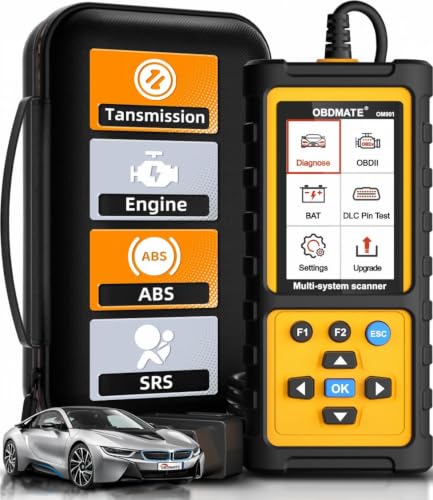
- 【Reset ABS/SRS/Transmission/Engine Lights】 More than an check engine code reader, OBDMATE OM901 obd2 scanner performs comprehensive diagnostics for the 4 most-used systems (ABS/SRS/Engine/Transmission). It quickly clears fault codes, turns off warning lights, read data stream and auto VIN.
- 【3.5" Handheld Scanner with 4 System Diagnose】 3.5" Super large TFT screen equipped displays an intuitive menu and clear readings of various sensors from ABS, SRS, ECM and TCM systems. It arrived with a silicone protective case and hard-shell carrying case, ensuring long-lived durability and drop resistance. The car diagnostic tool is plug-to-play designed, plug it and get diagnosis started without any batteries or updates required.
- 【One-Click I/M Readines&Full OBD2 Functions】 Press F1 to get an intuitive corloured form about whether various emissions-related systems on the vehicle are operating properly. Help you get smog-check ready quickly. OM901 car scanner supports all essential OBD2 functions you need: read & clear codes, view freeze frame, read I/M readiness, retrieve VIN, live data stream (with graphing display), O2 sensor test, onboard monitoring mode, and EVAP leak test.
- 【Battery Voltage Check&DLC Pin Test】 It allows you to monitor battery health by testing current battery voltage. Plus, this obd2 diagnostic tool features DLC 16-PIN test to check current voltage of every pin.
- 【Automotive Scanner Diagnostic Kit】 The package comes with 1 car scanner, 1 USB-type c cable, 1 hard storage bag and 1 user manual(en). Free to update without any hidden fees. 5 languanges available in setting including English, French, Italian, German and Espanish. Valuable and Portable, making it a great tool kit for car owners, DIY enthusiasts, and professional mechanics.
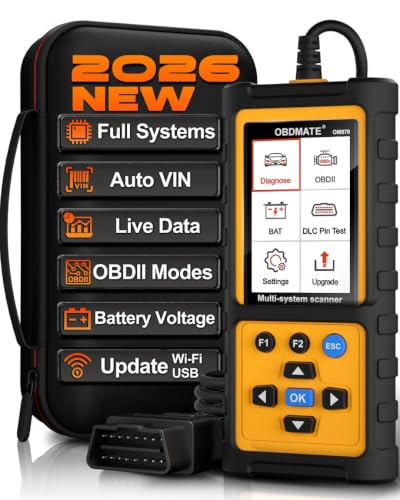
- 【Full Systems Automotive Diagnostic】 More than checking engine, ABS and SRS, OBDMATE OM970 obd2 scanner performs comprehensive diagnostics on all electric modules. It quickly scans and clears fault codes, turns off warning lights, reads live data, and features Auto-VIN technology.
- 【Live Datastream&4-in-1 Graph】 Easily view live sensor data such as RPM, fuel trims, ATF temperature, wheel speed sensor, battery voltage and so on. OM970 scan tool also supports 4-in-1 trend graphing. Spend just 3 minutes to check – and you'll know exactly what's going wrong, helping you avoid hundreds in dealership diagnostic fees.
- 【One-Click I/M Readiness&Full OBD2 Functions】 Press F1 to get an intuitive corloured form about whether your vehicle's emissions-related systems are operating properly. Help you get smog-check ready quickly. OM970 obd2 diagnostic tool supports all essential OBD2 functions you need. Plus, it features battery voltage test and DLC 16-PIN test.
- 【Straightforward Menus with Easy Navigation】 All functions are easy to understand without obscure decriptions. 3.5" Large screen delivers clear readings while keeping one-hand operation. The car diagnostic tool comes with a silicone protective case and a hard-shell carrying case, ensuring long-lived durability and drop resistance.
- 【Budget-Friendly, No Subscriptions, Free Software Updates】 Plug and play: no bluetooth pairing, monthly fees, Wi-Fi connection, or any other troublesome initial settings. OM970 obd2 scanner works out of the box with the latest software. Lifetime free upgrade.
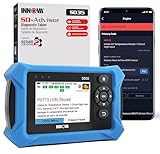
- OBD2 SCANNER FOR ALL SYSTEMS – The INNOVA SD35 is a tablet-based OBD2 scanner designed for advanced diagnostics. Read and clear check engine light, ABS, SRS, and TPMS codes, plus test your car battery and alternator to prevent unexpected failures. Vehicle coverage may vary. Please use Innova’s Coverage Checker to verify compatibility.
- ALL-SYSTEM DIAGNOSTICS & LIVE DATA – Unlike basic code readers, this OBD2 scanner for all vehicles scans engine, transmission, ABS, SRS, and more. Get real-time live data, including RPM, fuel trims, temperature readings, and oxygen sensor performance.
- OBD2 TABLET WITH USER-FRIENDLY INTERFACE – This automotive scan tool features a high-resolution display, making vehicle diagnostics faster and easier.
- ADVANCED TPMS, OIL RESET & SERVICE FUNCTIONS – Perform TPMS sensor checks, oil light reset, and other service resets with ease This professional diagnostic tool provides comprehensive vehicle maintenance capabilities in one device.
- WIDE VEHICLE COVERAGE (1996 & NEWER CARS & TRUCKS) – This OBD2 scanner Bluetooth tablet is compatible with Toyota, Ford, Honda, Chevrolet, Nissan, Dodge, and more. However, feature coverage may vary. Please use Innova's Coverage Checker to verify coverage.
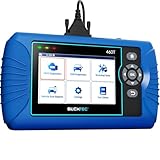
- [All System Diagnostics, Professional-Level Scanner] - BLCKTEC 460T is the ultimate OBD2 diagnostic tool for home mechanics and professionals. It supports all 10 OBD2 modes, reads and clears Engine/Transmission/ABS/SRS codes, performs All-System Diagnostics, offers workshop reset tools, and provides real-time live data. It helps you pinpoint issues, assess your car's condition, and prepare for SMOG checks with ease. NOTE: Function availability depends on your vehicle. Before you buy, be sure to use the Compatibility Checker on BLCKTEC website or contact our customer support to verify that the features you need are supported for your vehicle’s specific year, make, and model.
- [12+ Most Popular Reset Functions] - BLCKTEC 460T OBD2 scanner offers 12+ dealer-level service functions, including Oil Maintenance Reset, ABS Bleeding, EPB Reset, SAS(Steering Angle Sensor) Recalibration, DPF(Diesel Particulate Filter) Reset, Throttle Body Relearn, Battery Reset/Initialization, TPMS Relearn, Transmission Reset, Fluid Change Reset, Maintenance Reset and more, enabling you to perform workshop services like a pro. NOTE: Function availability depends on your vehicle. Be sure to use the Compatibility Checker on BLCKTEC website to verify that the features you need are supported for your vehicle.
- [Real-Time OBD2 and OEM Live Data, Freeze Frame Data] - BLCKTEC 460T helps diagnose vehicle issues when warning lights like Check Engine Light or ABS/SRS Light appear. It offers detailed DTC info, ECU Freeze Frame Data, and real-time OBD2 and advanced OEM live data, including Engine, Transmission, ABS, SRS, and more, making it easy to diagnose and resolve vehicle problems. You can view, graph, record, replay, and overlay up to four live data streams in a single graph for better analysis.
- [AutoVIN, AutoReLink, AutoScan, 3X Faster] - Equipped with AutoVIN technology, 460T automatically retrieves the VIN to save you time. Its AutoScan and AutoReLink features scan all of the vehicle's ECUs and detect any fault codes immediately after you plug the scanner into the vehicle's OBD2 port - no button presses required. Additionally, it regathers DTC and I/M readiness information every 30 seconds, simplifying monitor tests. 460T's advanced technology makes it 3X faster than other products.
- [Get RepairSolutions2, the #1 Auto Repair App for Free] - When paired with RepairSolutions2(RS2) App, 460T becomes even more powerful. RS2's Verified Fix Database built by master technicians, provides the parts needed for the repair. Additionally, RS2 gives you access to OEM warranty info, maintenance schedules, TSB, and dealership recall info, making car care easier than ever. RS2 is free with no subscription fees and it stores your car scan reports in the cloud, allowing you to access, share, or print them anytime and anywhere.
This product presentation was made with AAWP plugin.